
How To Install Supervisor Amazon Linux 2026?

What is a Supervisor?

Supervisor is a convenient process control system that allows you to manage and monitor long-running processes on your server. In this article, I will take you through the steps to install, configure, and utilize Supervisor on an AWS EC2 instance running on Linux 2023. By the end of this tutorial, you’ll have a fully functional Supervisor installation managing your processes efficiently.

Use case of Supervisor with an example

Suppose you have an Excel sheet of 200k records and you want to insert all those records in your database. If you create a module on your website to upload 200k users file, then the script will execute to insert users. This process will take a lot of time, and resources, and block the other processes on the same page until this upload process gets completed. Also, there are very high chances to get timeout errors.
You can do the same thing in the background and simultaneously can perform other tasks too asynchronously. You’ve to write a script and mention it in the supervisor’s process configuration. Supervisor executes that script on the server in the background without consuming many resources, timeout errors, and blocking other processes.


Installation and Configuration Steps

Install Python 3 and pip

Before installing Supervisor, ensure that Python 3 and pip are installed on your system. You can install them using the following command:

sudo apt update
sudo apt install python3-pip

Install Supervisor

With pip installed, you can now proceed to install Supervisor:

pip install supervisor
sudo apt install supervisor

Generate Supervisor Configuration

After Supervisor is installed, you can generate a sample configuration file to work with:

echo_supervisord_conf

Copy the Configuration File

To use this configuration file, we’ll copy it to the appropriate location:\

sudo su
echo_supervisord_conf > /etc/supervisord.conf

Edit the Configuration File

Open the configuration file in a text editor to make the necessary changes:

nano /etc/supervisord.conf
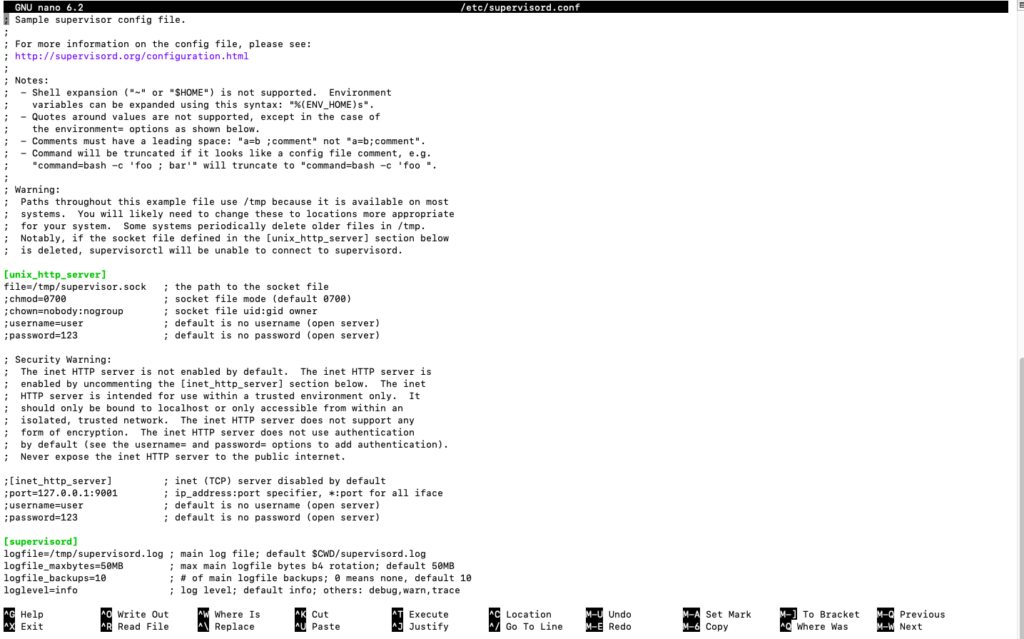
Screenshot 2023 08 16 at 12.28.27 PM
Supervisor configuration file

Also Read: How to Integrate Google Calendar API with Laravel 10 to Send Bulk Invites?


Add Process Worker

At the end of the configuration file, add the following lines:

[program:worker]
process_name=%(program_name)s_%(process_num)02d
command=php /var/www/html/panel/public_dev/artisan queue:work --sleep=3 --tries=3
stdout_logfile=/var/www/html/panel/public_dev/storage/logs/worker.log
stdout_logfile_maxbytes=0
stderr_logfile=/var/www/html/panel/public_dev/storage/logs/worker-error.log
stderr_logfile_maxbytes=0
autostart=true
autorestart=true
startsecs=1
numprocs=4

Make sure to modify the command line to match your specific use case.
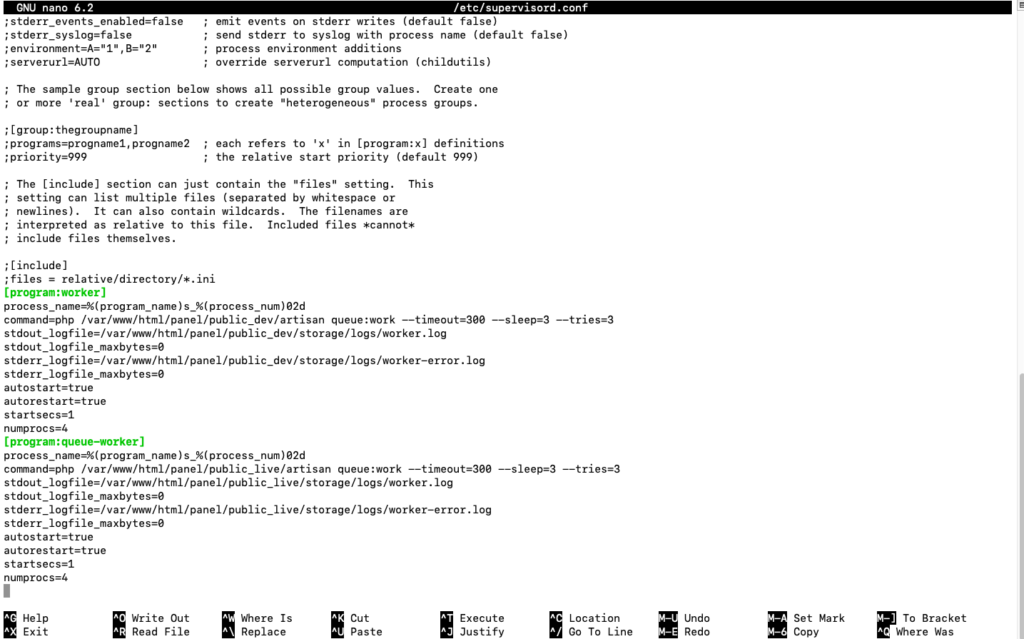
Screenshot 2023 08 16 at 12.29.10 PM
Supervisor configuration file with added process workers

Definition of Process Worker Terms

  • [program:worker] – Name of worker. When you add multiple process workers make sure to uniquely define this name. e.g. [program:worker1], [program:worker2], [program:insertWorker]
  • command=php /var/www/html/panel/public_dev/artisan queue:work --sleep=3 --tries=3 – Command/method that need to be executed in background
  • stdout_logfile=/var/www/html/panel/public_dev/storage/logs/worker.log – Log file for this process worker
  • stderr_logfile=/var/www/html/panel/public_dev/storage/logs/worker-error.log – Error log file for this process worker. Logs the error of the process worker.
  • numprocs=4 – Total no. of processes/threads associated with this process worker(No. of parallel process allocated to this worker to execute the task).

Also Read: Transform Your Php Workflow: Visual Studio Code Takes the Lead over Phpstorm


Save and Exit

To save the changes in the text editor, press Ctrl + X, then press Y to confirm the changes, and finally press Enter.

Start Supervisor

To enable and start the Supervisor service, use the following command:

sudo supervisord -c /etc/supervisord.conf

Check Process Status

To verify that Supervisor is managing the process correctly, you can check the status of all processes:

sudo supervisorctl status all

Screenshot 2023 08 16 at 12.33.29 PM
Process workers status

Also Read: Resolved: How to resolve common docker errors on Mac and Linux?


Update existing process workers in Supervisor

Open the supervisor configuration file

nano /etc/supervisord.conf

Do the changes in your existing worker or you can also add a new process worker. In the below example, I’m doing the changes in the existing process worker. Just removing sleep and timeout options.
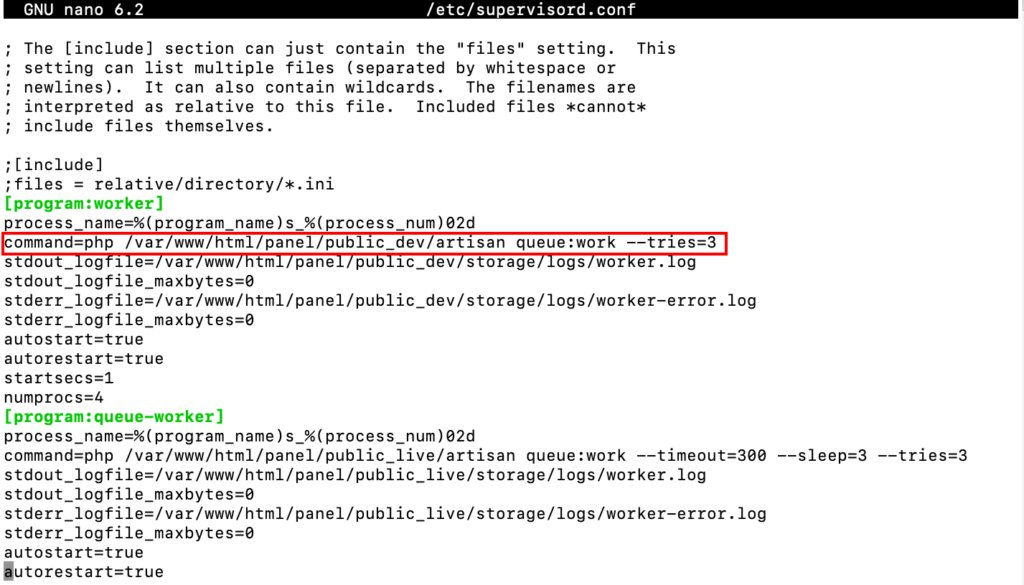
change in process worker
Change in existing process worker – supervisor

Re-read the updated configuration file

Using this command supervisor reads your changes done in supervisord.conf file.

sudo supervisorctl reread

Update the changes in the running process

To make the changes live and applicable, you have to update the changes in the running program by using this command.

sudo supervisorctl update

Note: Without re-read and updating the command your changes will not be effective.


Also Read: How To Validate Location From IP & Zipcode Using Laravel 10?


FAQs

What is Supervisor and why is it useful on AWS EC2 instances?

Supervisor is a process control system that helps you manage and monitor long-running processes on your server. On AWS EC2, Supervisor ensures your critical applications automatically restart in case of crashes or server reboots, promoting stability and uptime.

Is Supervisor difficult to set up on an AWS EC2 instance?

No! This guide provides a step-by-step walkthrough, making Supervisor installation and configuration on your EC2 instance a breeze.

What are the benefits of using Supervisor on AWS EC2 compared to manual process management?

Supervisor automates process management, saving you time and effort. It also offers features like automatic restarts, logging, and process grouping, improving overall server reliability.

Can Supervisor monitor multiple processes on my AWS EC2 instance?

Absolutely! Supervisor excels at managing a variety of processes. You can easily configure it to oversee all your critical applications on your EC2 instance.

What happens if a process managed by Supervisor crashes on my EC2 instance?

Supervisor can be configured to automatically restart crashed processes, ensuring your applications stay up and running without manual intervention.

Does Supervisor offer any logging capabilities on AWS EC2?

Yes! Supervisor logs process activity, including startup, shutdown, and errors. These logs can be invaluable for troubleshooting and monitoring the health of your applications.

Can I configure Supervisor to start processes only at specific times on my EC2 instance?

Yes! Supervisor allows you to define schedules for process startup and shutdown, offering more granular control over your application environment.

Is Supervisor compatible with different Linux distributions on AWS EC2?

Supervisor works well with popular Linux distributions like Amazon Linux 2, Ubuntu, and CentOS, making it a versatile choice for your EC2 instances.

Are there any security risks associated with using Supervisor on AWS EC2?

While Supervisor itself is generally secure, it’s crucial to follow best practices for user permissions and configuration files to maintain overall server security.

What if I encounter any issues while setting up Supervisor on my AWS EC2 instance?

This guide provides troubleshooting tips, but you can connect with me to troubleshoot the issues(one on one session is chargable).


Conclusion

You’ve successfully installed, configured, and utilized Supervisor on your AWS EC2 instance running Ubuntu. Supervisor provides an efficient way to manage and monitor long-running processes, ensuring that your applications run smoothly and reliably. With the easy-to-follow steps provided in this guide, you can now take advantage of Supervisor’s capabilities to enhance your server’s performance and stability.
Laravel 10 – Optimize and Upload Image to Azure Blob Storage

Introduction

When it comes to creating visually appealing websites, having well-optimized images is crucial. In this tutorial, we’ll walk you through a step-by-step guide on how to resize images in Laravel while maintaining the aspect ratio, and then create multiple copies of the images with different sizes like thumbnails, medium, and banner. We’ll also explore how to save all these images efficiently to an Azure Blob container, ensuring an outstanding user experience. Let’s dive in!


Understanding Laravel’s Image Resizing Workflow

In this section, we’ll break down the workflow of the image resizing process in Laravel. From loading the original image to calculating dimensions for different sizes, you’ll understand the inner workings of this powerful feature. We’ll also show you how to efficiently center the resized image on a white background for a professional look.

function resizeImage($file, $size)
    {
            [$width, $height] = explode('x', $size);
           
            $sourceImage = imagecreatefromstring(file_get_contents($file));

            // Get the original image dimensions
            $sourceWidth = imagesx($sourceImage);
            $sourceHeight = imagesy($sourceImage);
        
            // Calculate the aspect ratios of both images
            $sourceAspectRatio = $sourceWidth / $sourceHeight;
            $targetAspectRatio = $width / $height;
        
            // Calculate the new dimensions for the resized image
            if ($sourceAspectRatio > $targetAspectRatio) {
                $resizeWidth = $width;
                $resizeHeight = $width / $sourceAspectRatio;
            } else {
                $resizeHeight = $height;
                $resizeWidth = $height * $sourceAspectRatio;
            }

            // Creating white background
            $targetImage = imagecreatetruecolor($width, $height);
            $whiteColor = imagecolorallocate($targetImage, 255, 255, 255);
            imagefill($targetImage, 0, 0, $whiteColor);
        
            // Calculate the center position for the resized image on the new background
            $centerX = ($width - $resizeWidth) / 2;
            $centerY = ($height - $resizeHeight) / 2;

            // Resize the source image to the calculated dimensions
            imagecopyresampled(
                $targetImage,
                $sourceImage,
                $centerX,
                $centerY,
                0,
                0,
                $resizeWidth,
                $resizeHeight,
                $sourceWidth,
                $sourceHeight
            );
            $outputImagePath = 'resized_image.png';
            imagepng($targetImage, $outputImagePath);

            return $outputImagePath; // Return output image
    }

Also Read: Laravel Image Resize Project in 10 Minutes


Step-by-Step Implementation Guide

Create a Laravel project

composer create-project --prefer-dist laravel/laravel imageOptimization

Install laravel-azure-storage package via composer

composer require matthewbdaly/laravel-azure-storage

Add configuration variables in .env file (Values you’ll get from your azure account)

AZURE_STORAGE_CONTAINER=azure_container_name
AZURE_STORAGE_URL=https://azurestorageurl.blob.core.windows.net
AZURE_STORAGE_NAME=azureStorageName
AZURE_STORAGE_KEY=azureStorageKey

Add azure to the disk array in config/filesystems.php

'azure' => [
            'driver'    => 'azure', // As this is the name of the driver, this MUST be set to "azure"
            'name'      => env('AZURE_STORAGE_NAME'),
            'key'       => env('AZURE_STORAGE_KEY'),
            'container' => env('AZURE_STORAGE_CONTAINER'),
            'url'       => env('AZURE_STORAGE_URL')
            'prefix'    => null,
        ]

Create a controller to handle the Resize image logic

php artisan make:controller ImageOptimizeController
<?php

namespace App\Http\Controllers;

use Illuminate\Support\Facades\Storage;
use Illuminate\Http\Request;

class ImageOptimizeController extends Controller
{
    
    public function index()
    {
        return view('resize-image');
    }

    public function store(Request $request)
    {
        // Get the uploaded image from the request
        $image = $request->file('image');

        // Validate the image for acceptable image formats and max upload size(Max upto 5MB)
        $this->validate($request, [
            'image' => 'required|image|mimes:jpg,jpeg,png,gif|max:5120',
        ]);

        // Generate a unique filename for the uploaded image
        $timestamp = time();
        $imageName= $timestamp.'.'.$image->getClientOriginalExtension();

        // Saving original image to azure container
        $disk = Storage::disk('azure');
        $disk->put($imageName,file_get_contents($image));

        // Creating Multiple Image Copies of different sizes and saving to Azure blob container
        $sizes = ['240x100', '300x200', '900x300'];
        $this->resizeAndSaveToAzureBlob($image,$sizes,$imageName);
        
        //Send the user back to the upload page with success message and image URL in session
        return back()
            ->with('success','Image has successfully uploaded.');
    }

    function resizeAndSaveToAzureBlob($file, $sizes, $imgName)
    {
        foreach ($sizes as $size) {
            [$width, $height] = explode('x', $size);
           
            $sourceImage = imagecreatefromstring(file_get_contents($file));

            // Get the original image dimensions
            $sourceWidth = imagesx($sourceImage);
            $sourceHeight = imagesy($sourceImage);
        
            // Calculate the aspect ratios of both images
            $sourceAspectRatio = $sourceWidth / $sourceHeight;
            $targetAspectRatio = $width / $height;
        
            // Calculate the new dimensions for the resized image
            if ($sourceAspectRatio > $targetAspectRatio) {
                $resizeWidth = $width;
                $resizeHeight = $width / $sourceAspectRatio;
            } else {
                $resizeHeight = $height;
                $resizeWidth = $height * $sourceAspectRatio;
            }

            // Creating white background
            $targetImage = imagecreatetruecolor($width, $height);
            $whiteColor = imagecolorallocate($targetImage, 255, 255, 255);
            imagefill($targetImage, 0, 0, $whiteColor);
        
            // Calculate the center position for the resized image on the new background
            $centerX = ($width - $resizeWidth) / 2;
            $centerY = ($height - $resizeHeight) / 2;
            // Resize the source image to the calculated dimensions
            imagecopyresampled(
                $targetImage,
                $sourceImage,
                $centerX,
                $centerY,
                0,
                0,
                $resizeWidth,
                $resizeHeight,
                $sourceWidth,
                $sourceHeight
            );
            $outputImagePath = 'resized_image.png';
            imagepng($targetImage, $outputImagePath);
    
            // Generate a unique filename for the resized image
            $resizedFilename = $width . 'x' . $height . $imgName;
    
            // Save the resized image to Azure Blob Storage
            Storage::disk('azure')->put($resizedFilename, file_get_contents($outputImagePath));
        }
    }
}

Create a form to upload the image

Create resize-image.blade.php file in resources/views directory

<div class="container mt-5" style="max-width: 550px">
    <h2 class="mb-5">Image Resize Demo</h2>
    <form action="{{route('resizeImage')}}" method="post" enctype="multipart/form-data">
        @csrf
        @if ($message = Session::get('success'))
            <div class="alert alert-success">
                <strong>{{ $message }}</strong>
            </div>
        @endif

        @if (count($errors) > 0)
            <div class="alert alert-danger">
                <ul>
                    @foreach ($errors->all() as $error)
                        <li>{{ $error }}</li>
                    @endforeach
                </ul>
            </div>
        @endif
        <div class="custom-file">
            <input type="file" name="image" class="custom-file-input" id="chooseFile">
            <label class="custom-file-label" for="chooseFile">Select Image</label>
        </div>
        <button type="submit" name="submit" class="btn btn-outline-danger btn-block mt-4">
            Upload
        </button>
    </form>
</div>

Create routes to handle requests

Add the following routes in routes/web.php

// Show image upload form
Route::get('/image-resize', [ImageOptimizeController::class, 'index']);
// Resize and save image in folder
Route::post('/resize', [ImageOptimizeController::class, 'store'])->name('resizeImage');

Run the project

Now it’s time to see the output. Execute php artisan serve in your terminal and upload your resized copies of the uploaded image to the Azure blob container.


Also Read: Sending messages to Microsoft Teams Channel by using Laravel


FAQs

Why is there a need for image resizing?

To create visually appealing websites by optimizing images for different purposes such as thumbnails, medium views, and banners.

Why are well-optimized images crucial for websites?

Well-optimized images improve page loading times, overall website performance, and provide a better user experience.

Why does the tutorial emphasize maintaining aspect ratio during image resizing?

Maintaining aspect ratio ensures that resized images do not appear distorted, preserving the visual integrity of the original content.

Why is efficient storage to an Azure Blob container highlighted in the tutorial?

Efficient storage in Azure Blob ensures that the resized images are readily accessible, scalable, and can be delivered with low latency, contributing to an outstanding user experience.

Why is it important to integrate Azure Blob storage specifically for saving resized images in Laravel?

Integrating Azure Blob storage provides a scalable, reliable, and cloud-based solution for saving resized images. It ensures accessibility, durability, and efficient management of image assets in a production environment, aligning with modern web development practices.


Summary of Findings

The root cause of the problem lies in the necessity for efficient image resizing and storage in Laravel to enhance website visual appeal and user experience. The need for well-optimized images, the importance of maintaining aspect ratio, the requirement for efficient storage on Azure Blob, the complexity of the process, and the importance of integrating Azure Blob storage contribute to the demand for a comprehensive tutorial and tooling. The tutorial systematically addresses these aspects, providing a solution that is accessible, error-resistant, and aligns with contemporary cloud-based storage practices for developers. By implementing these techniques, your website will stand out with stunning visuals, improved performance, and enhanced user experience. So go ahead, implement what you’ve learned, and watch your website’s images captivate your audience and outrank your competition!

How to send notification to Microsoft Teams from Laravel 10?

To send a notification to Microsoft Teams channel using Laravel 10, you can use laravel-notification-channels/microsoft-teams package. In this post, I’ve explained step by step process for integrating and implementing this php package.

Expected Result

Create Teams channel and webhook URL

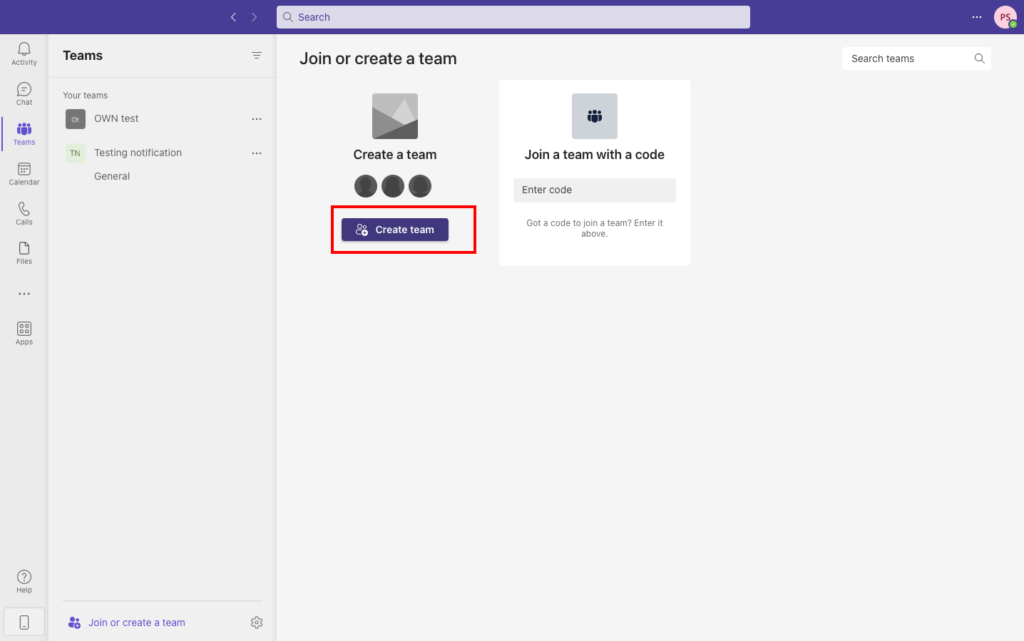
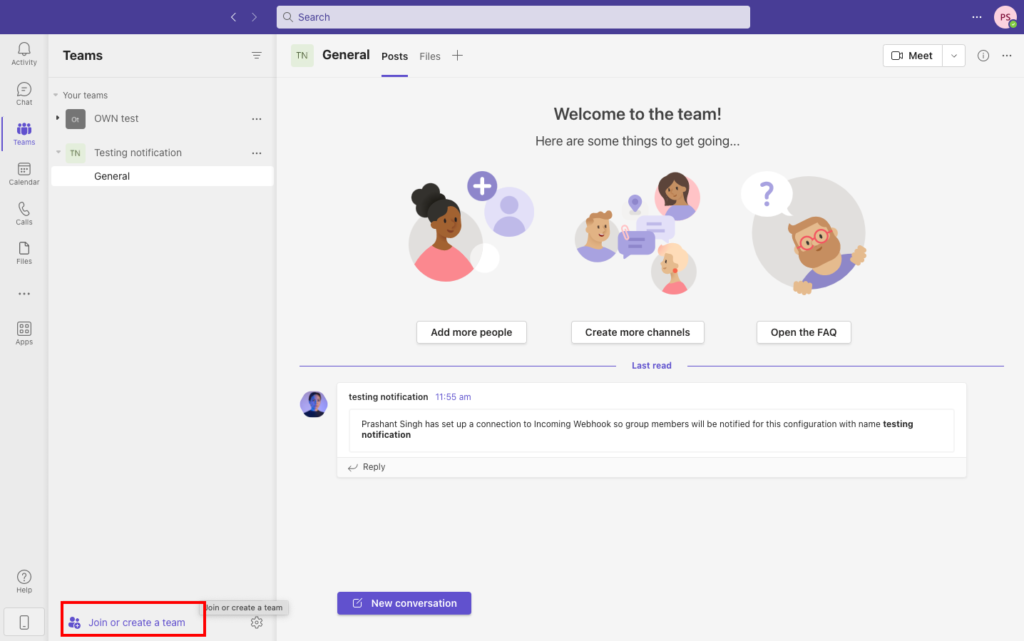
1. Open Microsoft Teams, go to the Teams menu and create a new team.

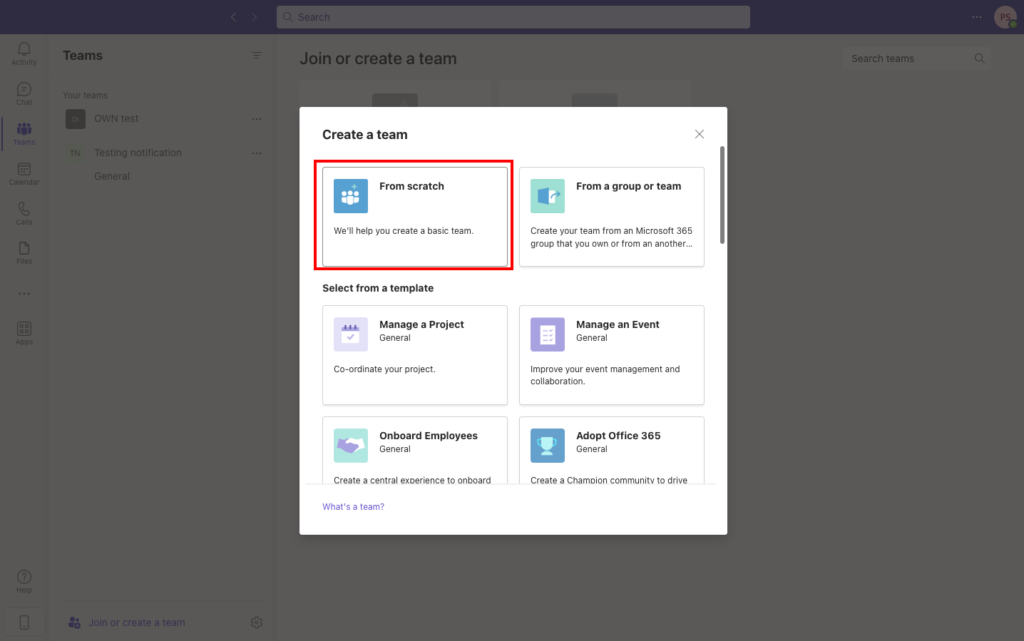
2. Select From scratch option to create the channel.

Screenshot 2023 06 05 at 11.58.20 AM

3. Choose whether your channel is publicly accessible or it is a private channel. Enter the title and description of the channel and click next. Your channel is now created.

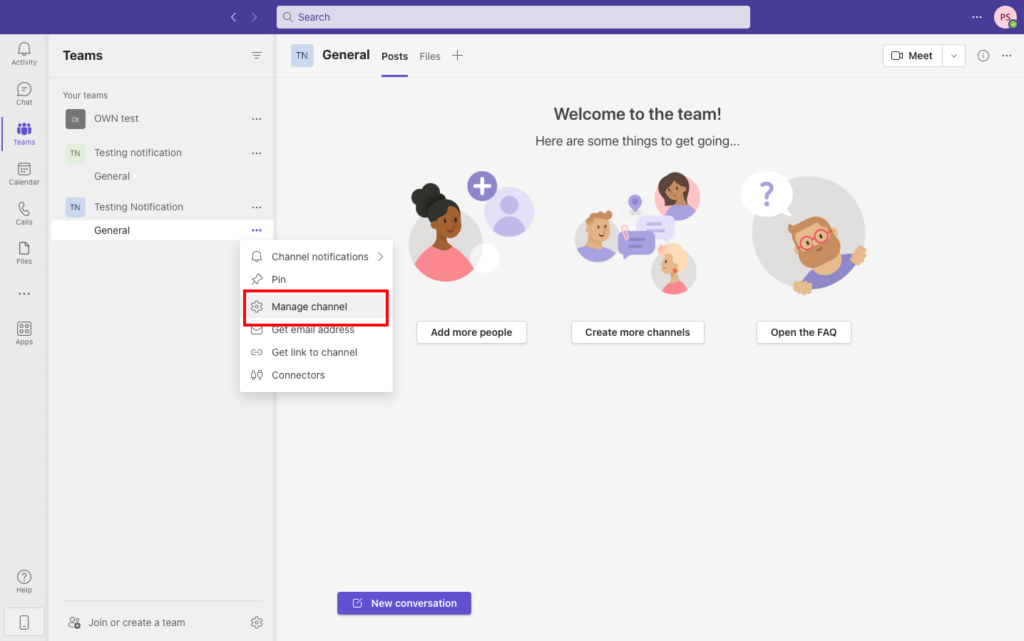
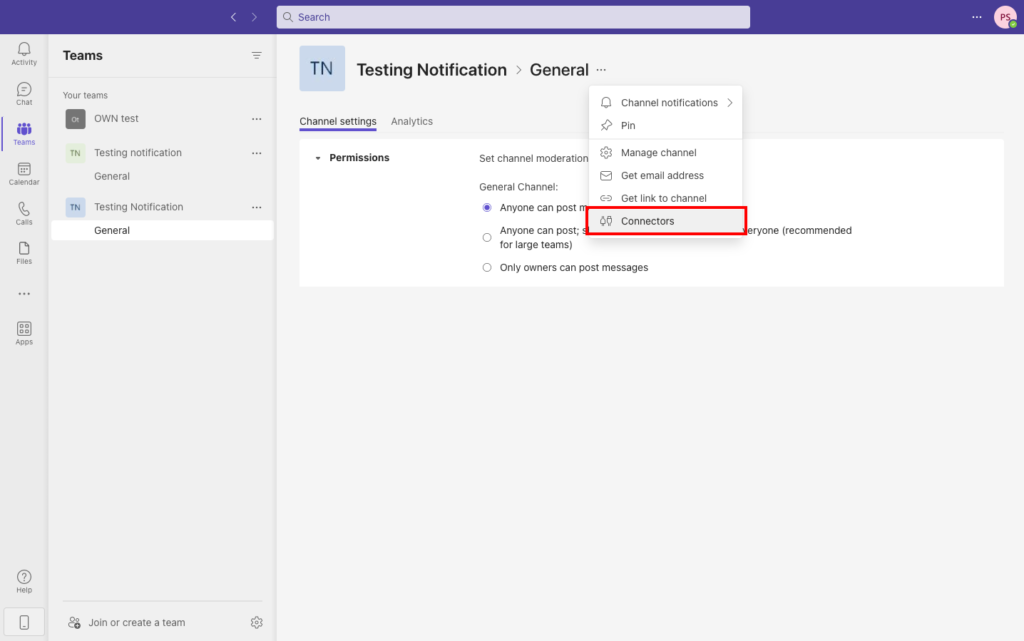
4. You can see your channel on the left-hand sidebar in Teams. Click on the 3 dots of the channel general, you’ll see couple of options there. You have to select Manage channel. On the main pannel click on the 3 dots at the top, this will again show a couple of options but you’ve to choose connectors this time.

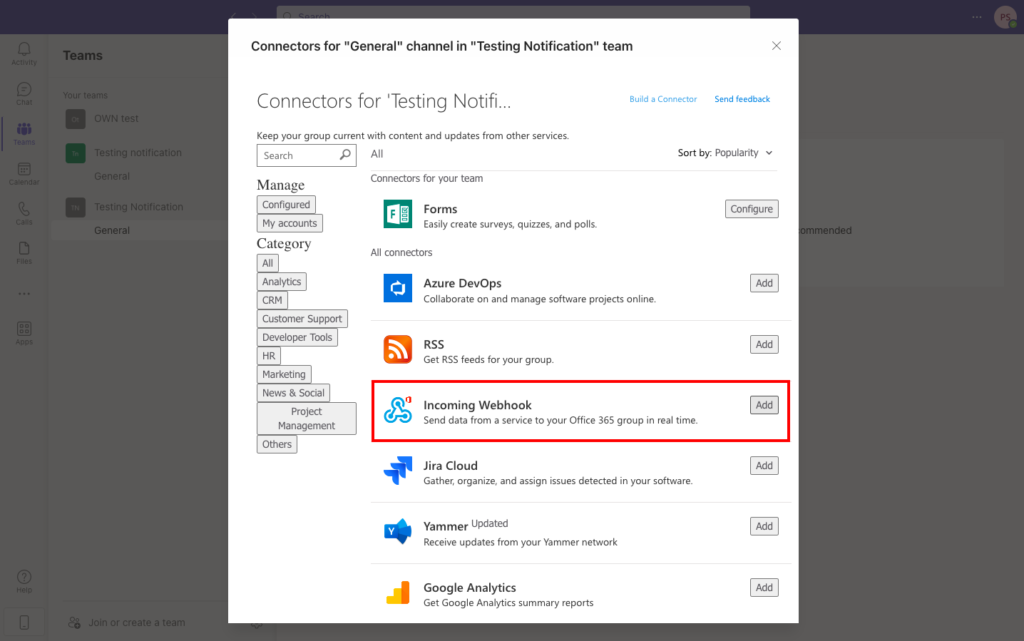
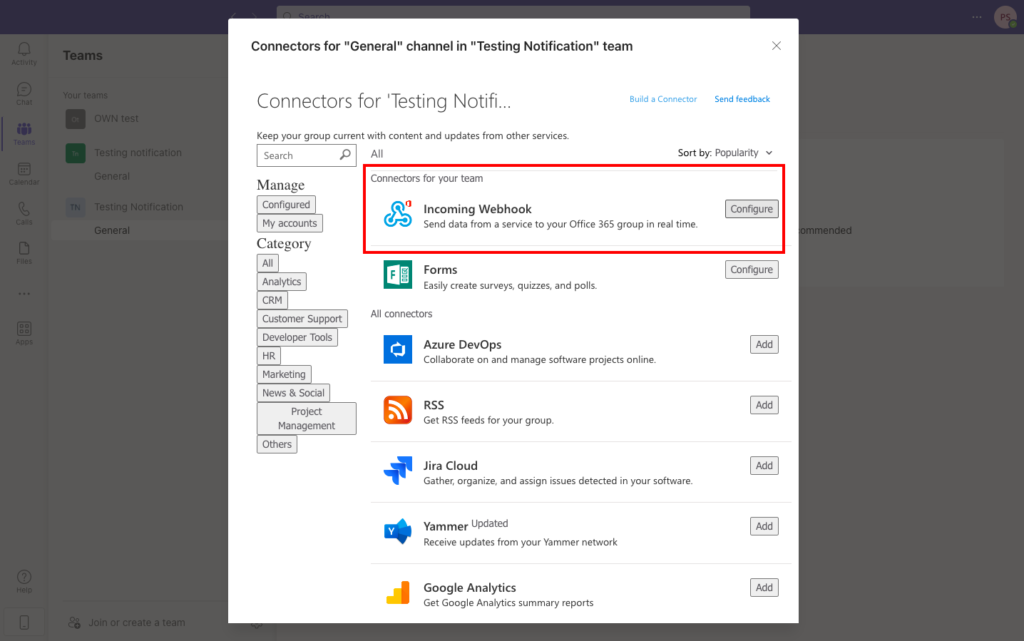
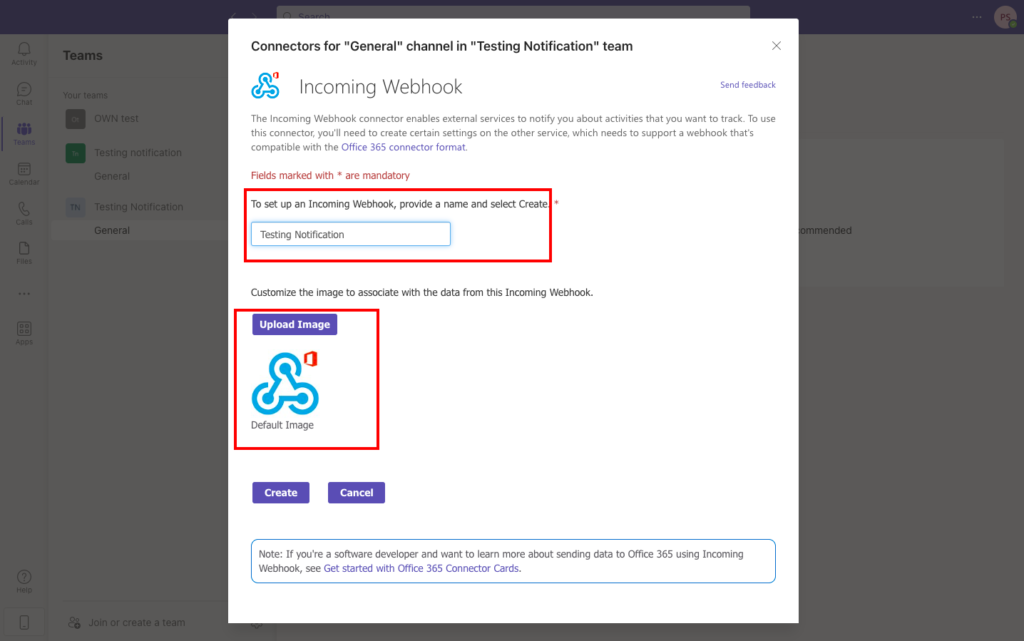
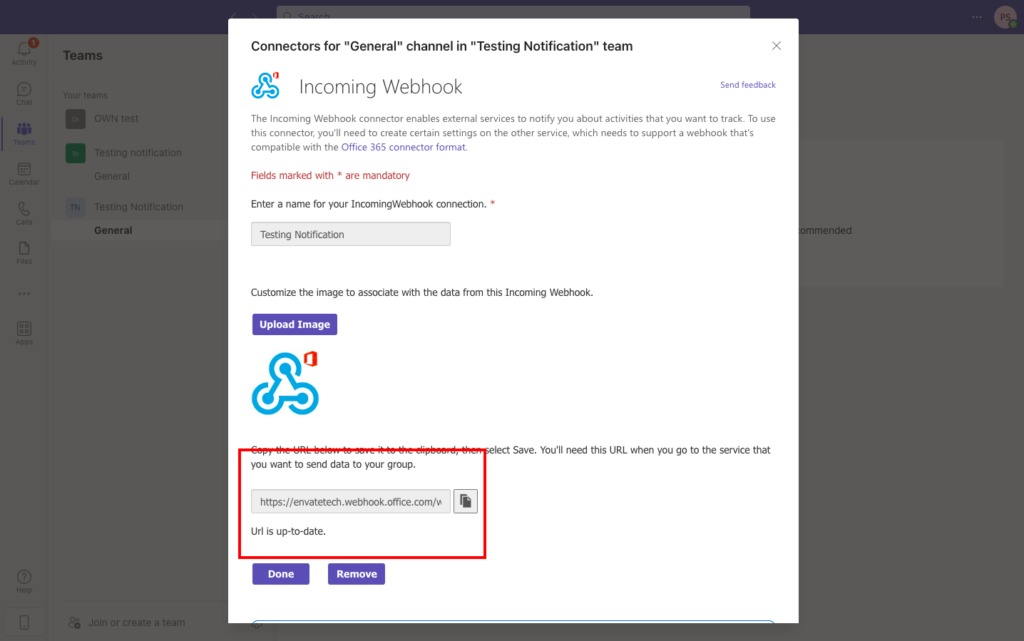
5. Search Incoming Webhook connector and add it to your channel. Go to the general 3 dot menu and again click on connectors. This time you have to select configure option which is visible in front of Incoming Webhook. Give a name to your webhook. Upload the logo if you have any for the channel and click on create button. This will give you a webhook URL which we’ll add to the laravel code.


Also Read: Docker Setup Issues: Resolved


Installation (Integration)

To install the Microsoft Teams Notifications Channel for Laravel package in your laravel project, run the following command in your terminal. This command will install Microsoft Teams Notifications Channel for Laravel package via using composer.

composer require laravel-notification-channels/microsoft-teams

Next, if you’re using Laravel without auto-discovery, add the service provider to config/app.php:

'providers' => [
    // ...
    NotificationChannels\MicrosoftTeams\MicrosoftTeamsServiceProvider::class,
]

Add Teams channel webhook URL in the environment (.env) file.

TEAMS_CHANNEL_WEBHOOK_URL = "https://abcde.webhook.office.com/webhookb2/9c708a7f-af2f-4e2d-82fe-2akjhf437yf34gf3c@2f9e0a1e-947c-491d-aed8-1495f1bb899d/IncomingWebhook/a9ec3fb6458f4ksdjhf8344r4fjnqwe3ca767/f005bdaf-b4fe-459d-bb39-0c24f80f62ea"

Configure the webhook URL in your project by adding Microsoft Teams Service. To add Microsoft Teams service, add the following code in your config/services.php file

...
'microsoft_teams' => [
    'webhook_url' => env('TEAMS_CHANNEL_WEBHOOK_URL'),
],
...

Also Read: How To Setup Real-Time Synchronization Using WebSocket with Laravel 11, Pusher, & Angular 18?


Sending Message to Channel (Implementation)

Create a Notification

Run the following command to create notification class inside app/Notifications

php artisan make:notification MSNotification

Create Teams message card

Write the logic to create a message card, its type, and the content that is going to be delivered on the Microsoft Teams channel.

<?php

namespace App\Notifications;

use Illuminate\Bus\Queueable;
use Illuminate\Support\Facades\Auth;
use Illuminate\Notifications\Notification;
use Illuminate\Contracts\Queue\ShouldQueue;
use Illuminate\Notifications\Messages\MailMessage;
use NotificationChannels\MicrosoftTeams\MicrosoftTeamsChannel;
use NotificationChannels\MicrosoftTeams\MicrosoftTeamsMessage;

class MSNotification extends Notification
{
    use Queueable;

    private $message;
    /**
     * Create a new notification instance.
     *
     * @return void
     */
    public function __construct($message)
    {
        $this->message = $message;
    }

    /**
     * Get the notification's delivery channels.
     *
     * @param  mixed  $notifiable
     * @return array
     */
    public function via($notifiable)
    {
        return [MicrosoftTeamsChannel::class];
    }

    /**
     * Get the mail representation of the notification.
     *
     * @param  mixed  $notifiable
     * @return \Illuminate\Notifications\Messages\MailMessage
     */
    public function toMicrosoftTeams($notifiable)
    {
        return MicrosoftTeamsMessage::create()
            ->to(config('services.microsoft_teams.webhook_url'))
            ->type('success')
            ->content($this->message);
    }

    /**
     * Get the array representation of the notification.
     *
     * @param  mixed  $notifiable
     * @return array
     */
    public function toArray($notifiable)
    {
        return [
            //
        ];
    }
}


Also Read: What is N+1 Query Problem? How do you solve it in Laravel?


Send message to the Teams channel

A. Create login route.

<?php

// routes/api.php

use Illuminate\Http\Request;
use Illuminate\Support\Facades\Route;

Route::post('/login', 'Api\ApiController@login');

B. Create controller and method to send message to the Microsoft Teams Channel

<?php

// app/Http/Controllers/Api/ApiController.php

namespace App\Http\Controllers\Api;
use Illuminate\Http\Request;
use F9Web\ApiResponseHelpers;
use App\Http\Controllers\Controller;
use Illuminate\Support\Facades\Auth;
use App\Notifications\MSNotification;
use NotificationChannels\MicrosoftTeams\MicrosoftTeamsChannel;

class ApiController extends Controller
{
    use ApiResponseHelpers;
    public function login(Request $request)
    {
        $data = $request->validate([
            'email' => 'email|required',
            'password' => 'required'
        ]);

        if (!auth()->attempt($data)) {
            return response(['error_message' => 'Incorrect Details. Please try again']);
        }

        $accessToken = auth()->user()->createToken('API Token')->plainTextToken;
        $MSmessage = 'Hi '.Auth::user()->fname.'! You are successfully loggedin.';
        Notification::route(MicrosoftTeamsChannel::class,null)->notify(new MSNotification($MSmessage));
        return $this->setDefaultSuccessResponse([])->respondWithSuccess(['user' => auth()->user(), 'access_token' => $accessToken]);
    }
}

Also Read: Setting Up and Configuring Supervisor for Process Management on AWS EC2 Ubuntu


Final Words

Now you know how to send customized messages on the occurrence of different events to the Microsoft Teams Channel from your Laravel project.