
How to Integrate Google Calendar API Using Laravel 10 to Send Bulk Invites In 2026?

Google Calendar is a powerful tool for managing events and schedules. In this post, you will learn, how to integrate Google Calendar API in your Laravel 10(Php) project to send bulk calendar invites effortlessly. Integrating Google Calendar API into your Laravel application can enhance its functionality significantly.

Whether you’re building a collaborative scheduling platform or event management system, or want to leverage Google Calendar features within your Laravel project, you will get each bit of the integration process from this knowledge base.

Prerequisites

Before we dive into the integration steps, make sure you have the following:

  • A Laravel project up and running.
  • Basic knowledge of Laravel and web development.

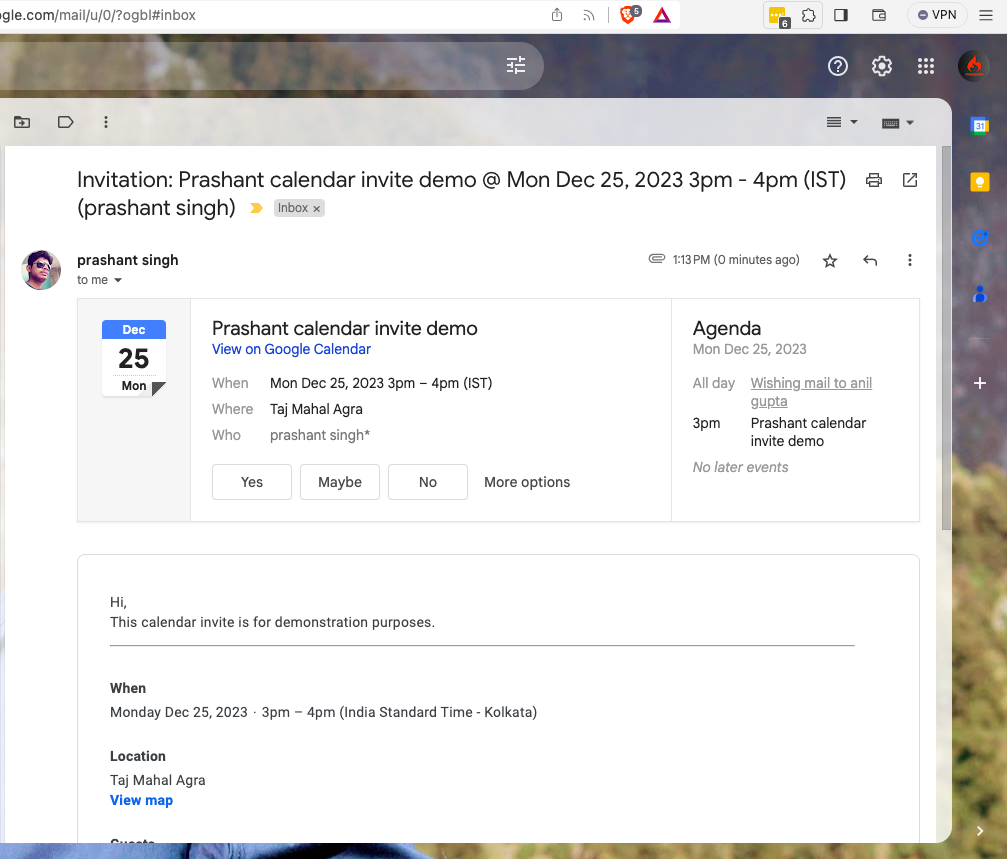
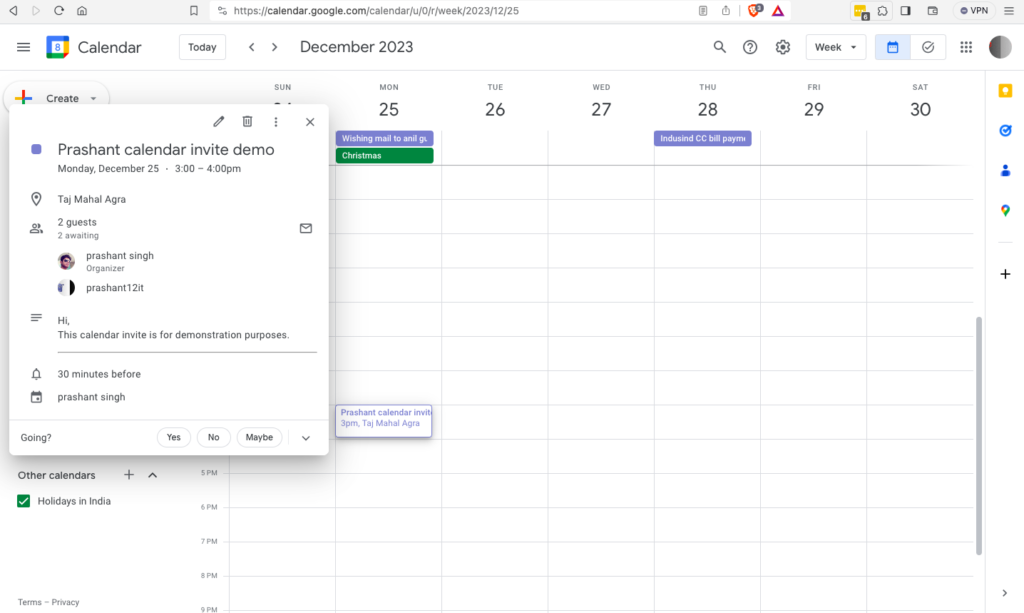
Expected Result

Input
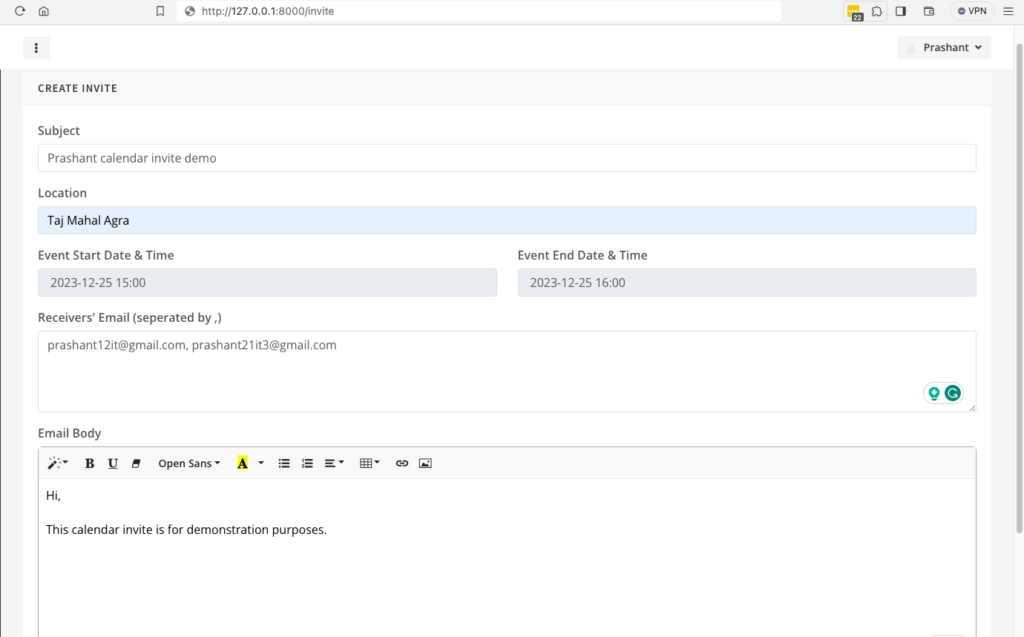
Input

Output

output1
output2
giphy


Step 1: Set Up Google Cloud Project and Enable Calendar API


In this step, we’ll create a project in the Google Cloud Console, enable the Google Calendar API service, and configure the basic project details.

Steps to setup

  1. Go to the Google Cloud Console
  2. Create a New Project
    • Click on the project dropdown in the top navigation bar.
    • Click on “New Project.”
    • Enter a name for your project and click “Create.”
  3. Enable Google Calendar API
    • In the sidebar, click on “APIs & Services” > “Library.”
    • Search for “Google Calendar API” and select it.
    • Click on “Enable.”
  4. Configure OAuth Consent Screen
    • In the sidebar, click on “APIs & Services” > “OAuth consent screen.”
    • Fill in the required information, including your application name, domain, privacy policy link, terms and conditions link, and app logo.
    • Under “Scopes for Google APIs,” add the necessary scopes (e.g., https://www.googleapis.com/auth/calendar, https://www.googleapis.com/auth/userinfo.email, https://www.googleapis.com/auth/userinfo.profile).
    • Add test users’ emails under “Test users”. You can do the testing only on these accounts unless app is publically available.
  5. Create OAuth Credentials
    • In the sidebar, click on “APIs & Services” > “Credentials.”
    • Click on “Create Credentials” and choose “OAuth client ID.”
    • Select “Web application” as the application type.
    • Add an authorized redirect URL (e.g., https://your-app.com/oauth/callback). For the project I’m demonstrating in this post I’ve added http://127.0.0.1:8000/gcallback and http://localhost:8000/gcallback
  6. Save and Note Down Credentials
    • Save your OAuth client ID and secret for later use in your Laravel application.

Video Demonstration

Congratulations! You have successfully set up your Google Cloud Project and configured the necessary credentials. In the next step, we will integrate these credentials into your Laravel application.

Step 2: Add Google Calendar API Credentials to Laravel Application


In this step, we will integrate the Google Calendar API credentials into your Laravel application by adding them to the .env file.

Instructions

  1. Open Your Laravel Project
    • Open your Laravel project in your preferred code editor.
  2. Locate the .env File
    • Navigate to the root directory of your Laravel project.
    • Locate the .env file.
  3. Add Google Calendar API Credentials
    • Open the .env file and add the following lines with your actual values
APP_URL=http://127.0.0.1:8000
GOOGLE_PROJECT_ID="prashant-calendar-invite-demo"
GOOGLE_CLIENT_ID="99999951693-8fjqs4a4ofs51hk5uivqlxxxxxxxxx.apps.googleusercontent.com"
GOOGLE_CLIENT_SECRET="GOCSPX-8DkbxZOfM2OKxAJReXXXXXXXXX"
GOOGLE_REDIRECT_URI="${APP_URL}/gcallback"
GOOGLE_ALLOW_MULTIPLE_CREDENTIALS=true
GOOGLE_ALLOW_JSON_ENCRYPT=false

Replace the values with the credentials you obtained from the Google Cloud Console and save the file(.env)

The project is now configured with the necessary Google Calendar API credentials. In the next step, we will install and configure the Laravel-Gmail package.


Step 3: Install and Configure Laravel Gmail Package


In this step, we will install the laravel-gmail package, which simplifies the integration of Gmail services in Laravel applications.

Package Installation

A. Install the Package via Composer Run the following command in your terminal to install the laravel-gmail package:

composer require dacastro4/laravel-gmail

B. Update config/app.php
Open the config/app.php file and add the LaravelGmailServiceProvider to the providers array:

'providers' => [
    // Other providers...
    Dacastro4\LaravelGmail\LaravelGmailServiceProvider::class,
],

C. Add Alias for the Package
Still in the config/app.php file, add an alias for the LaravelGmail facade to the aliases array:

'aliases' => [
    // Other aliases...
    'LaravelGmail' => Dacastro4\LaravelGmail\Facade\LaravelGmail::class,
],

Configuration

A. Publish the Configuration File
Run the following command to publish the configuration file:

php artisan vendor:publish --provider="Dacastro4\LaravelGmail\LaravelGmailServiceProvider"

This command will add a gmail.php file in the config folder, allowing you to modify configuration details like scopes, credential file name, etc.

Now, you have successfully installed and configured the laravel-gmail package. In the next step, we will implement the authentication flow and set up the calendar service.


Step 4: Set Up Redirect URI and OAuth Callback Method


In this step, we will configure the redirect URI and implement the OAuth callback method in your Laravel application. Additionally, we’ll create a table to store access tokens, refresh tokens, and other necessary details.

Configure Redirect URI

i. Add OAuth Callback Route
Open your routes/web.php file and add the following route definition:

// routes/web.php

Route::group(["middleware" => ['auth', 'auth.users']], function () {
    Route::get('/gcallback', 'GoogleApiController@gcallback')->name('googleCallback');
});

This ensures that only authenticated users with accounts in your application can access the Google Calendar API.

Database Table Creation for Token Management

i. Create the SMTP Config Table
Run the following command to generate a model and migration for the SMTPConfig table:

php artisan make:model SMTPConfig -m

This will create a migration file in the database/migrations directory.

ii. Migration Code for smtp_config Table
Open the generated migration file (e.g., database/migrations/YYYY_MM_DD_create_smtp_config_table.php) and add the following code:

// database/migrations/YYYY_MM_DD_create_smtp_config_table.php

public function up()
{
    Schema::create('smtp_config', function (Blueprint $table) {
        $table->id();
        $table->unsignedBigInteger('user_id');
        $table->foreign('user_id')->references('id')->on('users')->onDelete('cascade')->comment('Users');
        $table->string('email');
        $table->string('secret_key');
        $table->string('refresh_token');
        $table->string('token_id')->nullable();
        $table->timestamps();
    });
}

public function down()
{
    Schema::dropIfExists('smtp_config');
}

Run the migration to create the smtp_config table:

php artisan migrate

Callback method

i. Create GoogleApiController
Run the following command to generate the GoogleApiController

php artisan make:controller GoogleApiController

ii. Implement gcallback Method
Open app/Http/Controllers/GoogleApiController.php and add the following code to the gcallback method:

// app/Http/Controllers/GoogleApiController.php

use App\Models\SMTPConfig;
use Illuminate\Support\Facades\Crypt;
use Illuminate\Support\Facades\Auth;
use Dacastro4\LaravelGmail\Facade\LaravelGmail;

// ...

public function gcallback()
{
    if (isset($_GET['error']) && $_GET['error'] == 'access_denied') {
        return redirect('/smtp')->with('error', 'Access denied');
    }

    if (file_exists(storage_path('app/gmail/tokens/gmail-json-' . Auth::user()->id . '.json'))) {
        unlink(storage_path('app/gmail/tokens/gmail-json-' . Auth::user()->id . '.json'));
    }

    $gToken = LaravelGmail::makeToken();

    $tokenPayload = LaravelGmail::verifyIdToken($gToken['id_token']);
    if (empty($tokenPayload)) {
        return redirect()->back()->with('error', 'SMTP not configured, Try again');
    }

    $smtpconfig = array(
        'user_id' => Auth::user()->id,
        'email' => $tokenPayload['email'],
        'secret_key' => Crypt::encrypt($gToken['access_token']),
        'refresh_token' => Crypt::encrypt($gToken['refresh_token']),
        'token_id' => Crypt::encrypt($gToken['id_token'])
    );

    $smtpConfigData = SMTPConfig::where(['user_id' => Auth::user()->id, 'email' => $tokenPayload['email']])->get()->pluck('id');
    if ($smtpConfigData && isset($smtpConfigData[0]) && !empty($smtpConfigData[0])) {
        SMTPConfig::where(['user_id' => Auth::user()->id, 'email' => $tokenPayload['email']])->update($smtpconfig);
    } else {
        SMTPConfig::insert($smtpconfig);
    }

    return redirect()->back()->with("success", "Your Google Account is now Successfully connected");
}

This method handles the OAuth callback, retrieves the tokens, and stores them in the smtp_config table.
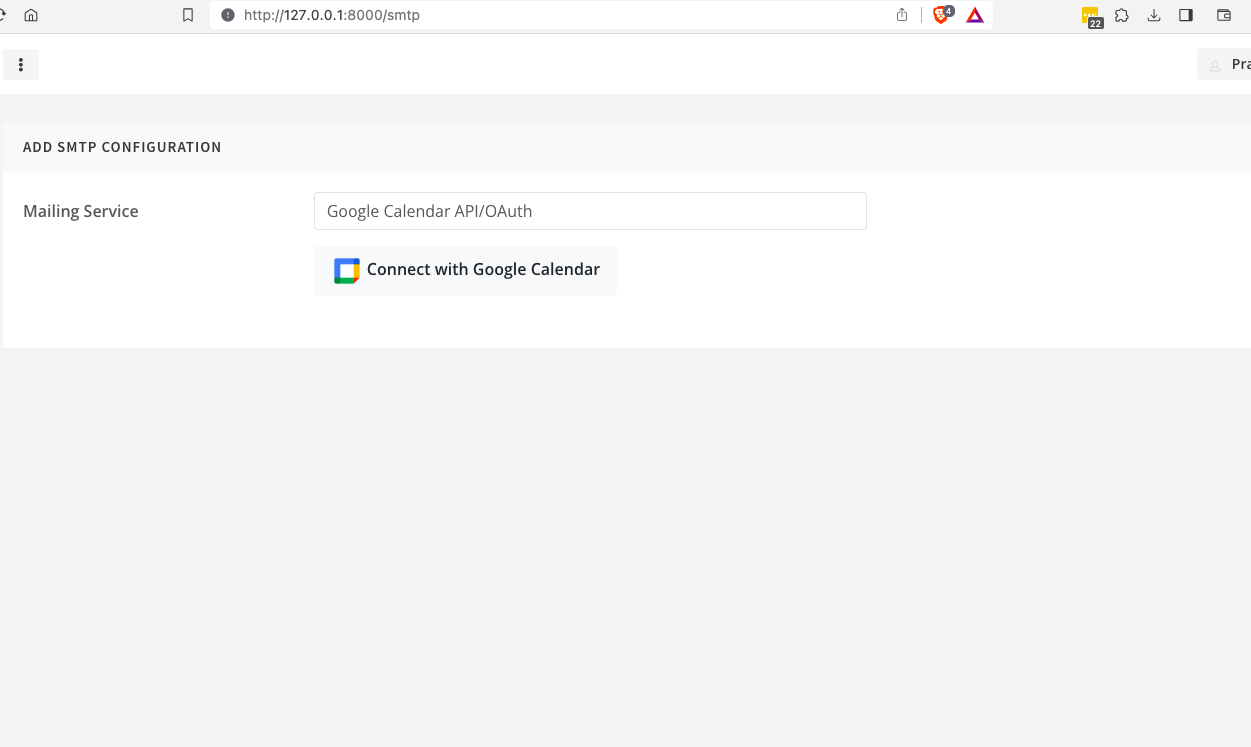
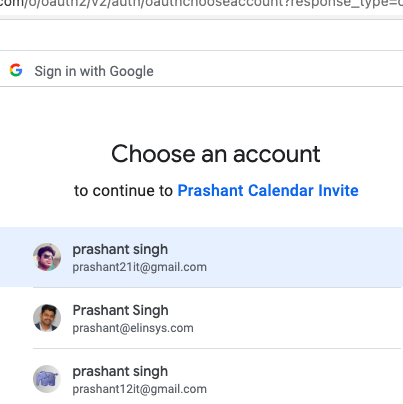
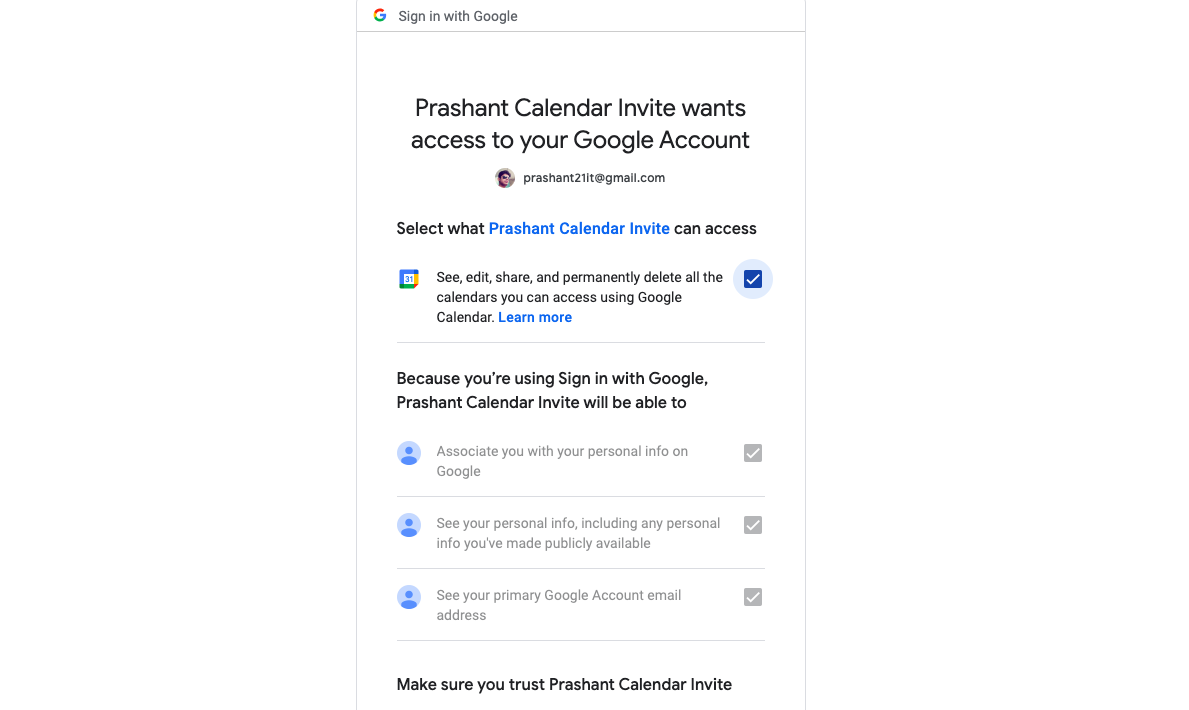
oauth callback 1 edited
oauth callback 2 edited 1
oauth callback 3 edited

Now, your Laravel application is set up to handle Google Calendar API callbacks and store the necessary tokens. In the next step, we will implement the functionality to send calendar invites.


Step 5: Send Calendar Invites


In this step, we will implement the method to compose and send calendar invites to specified receivers using the Google Calendar API.

Compose and Send Calendar Invites

A. Create the sendInvite Method
In your GoogleApiController.php file (located at app/Http/Controllers/GoogleApiController.php), add the following code for the sendInvite method:

// app/Http/Controllers/GoogleApiController.php

use App\Models\SMTPConfig;
use Illuminate\Support\Facades\Crypt;
use Illuminate\Support\Facades\Auth;
use Illuminate\Support\Facades\Validator;
use Illuminate\Http\Request;
use Carbon\Carbon;
use DateTimeZone;
use Google_Client as Google_Client;
use Google_Service_Calendar as Calendar;
use Google_Service_Calendar_Event as GSCEV;
use Google_Service_Calendar_EventDateTime as GSCEDT;
use Google_Service_Calendar_EventOrganizer as GSCEO;
use Dacastro4\LaravelGmail\Facade\LaravelGmail;

class GoogleApiController extends Controller
{
    // Other methods...

    public function sendInvite(Request $request)
    {
        $data = $request->all();

        $validator = Validator::make(
            $data,
            [
                'subject' => 'required',
                'receivers' => 'required',
                'content' => 'required|max:2000',
                'startdatetime' => 'required',
                'enddatetime' => 'required',
            ]
        );

        if ($validator->fails()) {
            return back()->withInput(request()->input())->withErrors($validator->errors());
        }

        $smtpConfig = SMTPConfig::where('user_id', Auth::user()->id)->first();
        $campDetails['sc_id'] = $smtpConfig->id;
        $campDetails['startdatetime'] = $data['startdatetime'];
        $campDetails['enddatetime'] = $data['enddatetime'];
        $campDetails['location'] = $data['location'] ?? '';
        $campDetails['subject'] = $data['subject'];
        $campDetails['content'] = $data['content'];
        $campDetails['calendar_id'] = $data['calendar_id'] ?? null;
        $receivers = explode(',', $data['receivers']);

        return $this->gCalenderInvite($campDetails, $receivers);
    }

    // Existing methods...

}

B. Implement the gCalenderInvite Method
Continuing in the GoogleApiController.php file, add the following code for the gCalenderInvite method:

// app/Http/Controllers/GoogleApiController.php

class GoogleApiController extends Controller
{
    // Other methods...

    public function gCalenderInvite($campDetails, $receivers, $updateInvite = 'N')
    {
        try {
            $smtpConfig = SMTPConfig::where('user_id', Auth::user()->id)->first();
            $refToken = Crypt::decrypt($smtpConfig->refresh_token);
            $accToken = LaravelGmail::refreshToken($refToken);
            if (isset($accToken['refresh_token']) && !empty($accToken['refresh_token'])) {
                $smtpconfig = array('refresh_token' => Crypt::encrypt($accToken['refresh_token']), 'token_id' => Crypt::encrypt($accToken['id_token']));
                SMTPConfig::where(['id' => $campDetails['sc_id']])->update($smtpconfig);
            }
            $token = $accToken['access_token'];
            $client = new Google_Client();
            $client->setAccessToken($token);
            $service = new Calendar($client);

            $calendarId = 'primary';

            $tz = new DateTimeZone('Asia/Kolkata');

            $startDateTimeArr = explode(" ", $campDetails['startdatetime']);
            $startDateArr = explode("-", $startDateTimeArr[0]);
            $startTimeArr = explode(":", $startDateTimeArr[1]);
            $endDateTimeArr = explode(" ", $campDetails['enddatetime']);
            $endDateArr = explode("-", $endDateTimeArr[0]);
            $endTimeArr = explode(":", $endDateTimeArr[1]);

            $startTime = Carbon::create(
                $startDateArr[0],
                $startDateArr[1],
                $startDateArr[2],
                $startTimeArr[0],
                $startTimeArr[1],
                $startTimeArr[2],
                $tz
            );
            $endTime = Carbon::create(
                $endDateArr[0],
                $endDateArr[1],
                $endDateArr[2],
                $endTimeArr[0],
                $endTimeArr[1],
                $endTimeArr[2],
                $tz
            );
            // Use the Google date handling provided by the Google Client
            $googleStartTime = new GSCEDT();
            $googleStartTime->setTimeZone('Asia/Kolkata');
            $googleStartTime->setDateTime($startTime->format('c'));
            $googleEndTime = new GSCEDT();
            $googleEndTime->setTimeZone('Asia/Kolkata');
            $googleEndTime->setDateTime($endTime->format('c'));
            // Create the calendar event and give a default title.
            $event = new GSCEV();
            $event->setStart($googleStartTime);
            // Same process to create end time as we use for the start time above.
            $event->setEnd($googleEndTime);

            foreach ($receivers as $receiver) {

                $fname = explode('@',$receiver['email'])[0];
                $email = $receiver['email'];

                $location = $campDetails['location'];

                $summary = $campDetails['subject'];
                $organizer_email = $smtpConfig->email;
                $organizer_name = Auth::user()->name;


                $descString = $campDetails['content'];
                $oldBody = array('{first-name}', '{webinar-title}', '{webinar-start-datetime}', '{webinar-end-datetime}', '{attendee-email}', '{event-url}');
                $newBody = array($fname, $summary, $campDetails['startdatetime'], $campDetails['enddatetime'], $email, $location);
                $body = str_replace($oldBody, $newBody, $descString);
                $summary = str_replace($oldBody, $newBody, $summary);
            }


            $event->setSummary($summary);
            $event->setDescription($body);
            $event->setLocation($location);
            $gOrganizer = new GSCEO();
            $gOrganizer->setDisplayName($organizer_name);
            $gOrganizer->setEmail($organizer_email);
            $event->setOrganizer($gOrganizer);
            $event->setAttendees([
                ['email' => $organizer_email, 'displayName' => $organizer_name, 'organizer' => true],
                ['email' => $email, 'displayName' => $fname, 'organizer' => false]
            ]);
            if ($updateInvite == 'Y') {
                $response = $service->events->update($calendarId, $campDetails['calendar_id'], $event, ['sendUpdates' => 'all', 'supportsAttachments' => true]);
            } else {
                $response = $service->events->insert($calendarId, $event, ['sendUpdates' => 'all', 'supportsAttachments' => true]);
            }
            if ($response && isset($response->id)) {
                return redirect()->back()->with("success", "Invites sent successfully");
            } else {
                return redirect()->back()->with("error", "Something goes wrong, please try later.");
            }
        } catch (Exception $e) {
            Log::info($e->getMessage());
            return redirect()->back()->with("error", "Error " . $e->getMessage());
        }
    }

    // Other methods...

}

This method handles the process of sending calendar invites based on the provided details.

Now, our Laravel application is equipped to compose and send calendar invites using the Google Calendar API. Create a form in the Blade template for composing and sending invites.


FAQs

Why is there a need to integrate Google Calendar API with Laravel 10 for sending bulk invites?

To enhance the functionality of Laravel applications by allowing them to send bulk calendar invites effortlessly using the powerful features of Google Calendar API.

Why is Google Calendar API integration crucial for managing events and schedules within Laravel projects?

Google Calendar API provides a robust tool for managing events and schedules, and integrating it into Laravel projects can significantly improve their event management capabilities.

Why is the setup of a Google Cloud Project and enabling Calendar API necessary for this integration?

The setup involves creating a project, enabling the Calendar API service, and configuring OAuth consent screen and credentials, which are prerequisites for establishing a secure connection between the Laravel application and Google Calendar API.

Why is the integration process complex, requiring steps such as configuring OAuth consent screen, creating OAuth credentials, and adding Google Calendar API credentials to Laravel application?

The complexity arises from the need to ensure secure authentication and authorization between the Laravel application and Google Calendar API. Configuring OAuth consent, creating credentials, and adding them to the application are crucial steps for establishing a secure and functional integration.

Why is the Laravel-Gmail package used, and why is it necessary to install and configure it for this integration?

The Laravel-Gmail package simplifies the integration of Gmail services within Laravel applications, which is essential for handling email-related functionalities associated with calendar invites. Installation and configuration of this package streamline the process.


Summary

Congratulations! You’ve successfully integrated the Google Calendar API into the Laravel application, opening up a world of possibilities for event management and scheduling. This post has guided you through each step, ensuring a smooth integration process. The challenges arise from the details of defining an OAuth consent, setting up a Google Cloud Project, enabling the Calendar API, generating OAuth credentials, and integrating Gmail services. The post takes a methodical approach to addressing these issues, offering a solution that makes use of the Google Calendar API and related services to improve the event management capabilities of Laravel apps.

Recap of Key Steps

  1. Google Cloud Setup: We started by creating a Google Cloud project, enabling the Calendar API, and obtaining essential credentials.
  2. Laravel Configuration: You learned how to configure your Laravel application with the necessary Google Calendar API credentials, laying the foundation for seamless integration.
  3. Laravel Gmail Package: The installation and configuration of the laravel-gmail package streamlined the interaction with Gmail services, making the integration more efficient.
  4. OAuth Callback and Database Setup: We set up the OAuth callback route, created a database table to store access tokens, and implemented the necessary methods in the GoogleApiController.
  5. Sending Calendar Invites: The final step involved creating a method to compose and send calendar invites, showcasing the practical use of the integrated Google Calendar API.

Open Source 2024: Download Free Bootstrap5 HTML Templates

Introduction

Embarking on a web development journey often starts with the quest for the perfect HTML template. To help you unlock your creativity and save time, I’ve curated a list of seven outstanding websites that offer an array of free Bootstrap5 HTML templates. From sleek and modern designs to minimalist aesthetics, these platforms cater to various tastes and preferences. Let’s dive in, starting with the highest recommended and working our way down.

7 Jwels that offer free Bootstrap themes to download

  1. ThemeWagon – Open Source Excellence
    • ThemeWagon takes the top spot for its user-friendly approach. With no account creation needed, users can freely use templates in commercial projects. The open-source license and lifetime updates add to its appeal, though some themes may require providing an email for download. ThemeWagon’s commitment to open-source principles ensures that developers have the freedom to modify and enhance templates according to their needs.
      ThemeWagon
  2. Template Monster – Cart to Creativity
    • Template Monster adds a unique twist, requiring users to add free templates to the cart even though they are free. The one-time process of creating an account and setting a password might be a minor inconvenience for the high-quality templates available. Template Monster’s extensive collection includes professionally designed templates suitable for a wide range of industries, providing users with a diverse selection for their projects.
      Template Monster
  3. GridGum Marketplace – Account-Enhanced Licensing
    • GridGum Marketplace demands an account creation but compensates with a single-user license for free themes. Keep in mind that themes must display the owner’s credit link in the footer, making it an excellent choice for those looking for a balance between customization and recognition. GridGum Marketplace stands out for its community-driven approach, fostering a sense of collaboration among developers who appreciate giving credit where it’s due.
      GridGum
  4. BootstrapMade – Personalized Elegance
    • BootstrapMade is a fantastic choice for personal projects, with no account creation required. The free pricing plan allows users to use templates in personal projects, giving a touch of elegance to individual endeavors. BootstrapMade focuses on delivering high-quality templates that adhere to Bootstrap standards, ensuring that developers have a solid foundation for creating visually appealing and responsive websites.
      BootstrapMade
  5. HTMLrev – GitHub-Linked Innovation
    • HTMLrev stands out for its unique approach, redirecting users to free open-source HTML templates from various sites. The direct links to GitHub repositories provide developers with a transparent and efficient way to access and contribute to templates. HTMLrev’s emphasis on GitHub links fosters a sense of community collaboration, allowing developers to not only use but also contribute to the improvement of templates.
      HTMLrev
  6. TemplateMo – Streamlined Accessibility
    • TemplateMo offers an effortless experience with no account creation needed. Boasting the easiest one-click download process, TemplateMo is perfect for those who appreciate simplicity and efficiency. TemplateMo’s commitment to accessibility makes it an ideal choice for developers who want quick access to well-designed templates without the need for additional steps.
      TemplateMO
  7. HTML5Up – Elevate Your Project with HTML5 Magic
    • HTML5Up secures its place as a recommended resource, offering modern and responsive HTML templates. The subscription form is present but not mandatory, making it easy to download the themes hassle-free. HTML5Up’s templates are crafted with HTML5, ensuring compatibility with the latest web standards and providing developers with a solid foundation for creating visually stunning and technically robust websites.
      HTML5Up

Closing Note

Whether you’re building a professional website, a personal blog, or experimenting with the latest web technologies, these seven websites offer a diverse range of free HTML templates. From open-source excellence to one-click simplicity, each platform brings something unique to the table. Choose the one that aligns with your project requirements, and let your creativity flourish!

How To Read Emails Using Microsoft Graph API In Laravel 12?

In today’s fast-paced digital world, effective communication is key. For many, Outlook emails are a primary means of exchanging crucial information. But what if you could automate the process of reading and organizing these emails? Imagine effortlessly searching for specific receipts and converting them into PDFs with Laravel. In this blog post, I’ll take you through a step-by-step guide on how to read, filter, and save emails in PDF using Microsoft Graph API.

Introduction

Managing Outlook emails manually can be time-consuming and prone to errors. With the power of Laravel and Microsoft Graph API, you can automate this process, making it efficient and error-free. Our project will not only read your emails but also filter them to find receipts and save them in user-specific folders in PDF format.

Prerequisites

Before we dive into the code, you need to ensure you have the following prerequisites:

  • A Laravel project set up
  • Access to the Microsoft Graph API
  • Knowledge of OAuth and API authentication

Don’t worry if you don’t fulfill the prerequisites, I’ll explain each part. If you qualify for prerequisites then you can jump to the next section i.e. Redirect to Microsoft Login

Now I am going to explain each prerequisite point along with the code snippets for your Laravel project. Let’s go through them one by one.


Also Read: Sending messages to Microsoft Teams Channel by using Laravel


A Laravel Project Set-Up

Before you start working on your Outlook email processing project, you need to have a Laravel project set up. If you don’t have one, you can create a new Laravel project using Composer:

composer create-project laravel/laravel emailReader

Make sure to navigate to your project directory:

cd eamilReader

Access to the Microsoft Graph API

To access the Microsoft Graph API, you’ll need to create an Azure Active Directory App and configure it. Here’s how you can set up an Azure AD App:

  1. Register Your App: Go to the Azure Portal and register a new application.
  2. Configure Authentication:
    • Under “Authentication,” add the redirect URI where users will be redirected after login. This should match your Laravel project’s URL. (I’ve set it to http://localhost:8000/auth/microsoft/callback)
    • Configure the required permissions. For Outlook email access, you’ll typically need openid, profile, offline_access, Mail.Read and User.Read permissions.
    • set callback url
  3. Generate Client ID and Secret:
    • Under “Overview,” you’ll find your Application (client) ID. Save this as OAUTH_APP_ID in your Laravel .env file.app id and client secret
    • Generate and save a client secret (OAUTH_APP_PASSWORD) as well.client secret
  4. Configure Endpoints and Scopes:
    • Set the endpoints and scopes in your .env file. For example:
OAUTH_APP_ID="your-app-id"
OAUTH_APP_PASSWORD="your-client-secret"
OAUTH_REDIRECT_URI="http://localhost:8000/auth/microsoft/callback"
OAUTH_SCOPES='openid profile offline_access User.Read Mail.Read'
OAUTH_AUTHORITY="https://login.microsoftonline.com/common"
OAUTH_AUTHORIZE_ENDPOINT="/oauth2/v2.0/authorize"
OAUTH_TOKEN_ENDPOINT="/oauth2/v2.0/token"

Knowledge of OAuth and API Authentication

Understanding OAuth and API authentication is crucial for working with the Microsoft Graph API. In your Laravel project, you’ll typically need a package like thephpleague/oauth2-client to manage the OAuth flow. You can install it using Composer:

composer require league/oauth2-client

Now that you’ve set up your Laravel project, configured the Azure AD App, and have knowledge of OAuth and API authentication, you’re ready to implement the methods and code we discussed earlier to read, filter, and save Outlook emails. These prerequisites lay the foundation for the successful implementation of your project.

Now we’re going to work on the logic part i.e. redirecting the user to ask for the email read permission, filtering email, making PDF, and saving it into the folder. Let’s get our hands dirty with the code.


Also Read: Typescript Technical Interview Questions 2026 – Part 1


Redirect to Microsoft/Outlook Login

In the first method, we initialize the OAuth client and redirect the user to the Microsoft login page to grant permission to read their Outlook emails. We’ll guide you through the steps:

  • Initialize the OAuth client.
  • Save the user ID in the Laravel session.
  • Generate the authorization URL.
  • Save the client state.
  • Redirect the user to the Microsoft login page.
public function redirectToMicrosoftLogin($userID)
{

    // Initialize the OAuth client
    $oauthClient = new GenericProvider([
      'clientId' => env('OAUTH_APP_ID'),
      'clientSecret' => env('OAUTH_APP_PASSWORD'),
      'redirectUri' => env('OAUTH_REDIRECT_URI'),
      'urlAuthorize' => env('OAUTH_AUTHORITY') . env('OAUTH_AUTHORIZE_ENDPOINT'),
      'urlAccessToken' => env('OAUTH_AUTHORITY') . env('OAUTH_TOKEN_ENDPOINT'),
      'urlResourceOwnerDetails' => '',
      'scopes' => env('OAUTH_SCOPES')
    ]);
    Session::put('o365user_id',$userID);
    $authUrl = $oauthClient->getAuthorizationUrl();

    // Save client state so we can validate in callback
    session(['oauthState' => $oauthClient->getState()]);

    // Redirect to the signin page
    return redirect()->away($authUrl);
}

Handle Microsoft Login Callback

In the second method, we handle the callback after the user accepts or declines access consent. We’ll explain:

  • Validating the state for security.
  • Obtaining the authorization code.
  • Initializing the OAuth client.
  • Making the token request.
  • Saving the access token and redirecting with success or error messages.
public function handleMicrosoftLoginCallback(Request $request)
{
    // Validate state
    $expectedState = session('oauthState');
    $request->session()->forget('oauthState');
    $providedState = $request->query('state');
    if (!isset($expectedState)) {
      // If there is no expected state in the session,
      // do nothing and redirect to the home page.
      return redirect('/admin')->with('error', 'SMTP not configured, Try again');
    }

    // Authorization code should be in the "code" query param
    $authCode = $request->query('code');
    if (isset($authCode)) {
      // Initialize the OAuth client
      $oauthClient = new GenericProvider([
        'clientId' => env('OAUTH_APP_ID'),
        'clientSecret' => env('OAUTH_APP_PASSWORD'),
        'redirectUri' => env('OAUTH_REDIRECT_URI'),
        'urlAuthorize' => env('OAUTH_AUTHORITY') . env('OAUTH_AUTHORIZE_ENDPOINT'),
        'urlAccessToken' => env('OAUTH_AUTHORITY') . env('OAUTH_TOKEN_ENDPOINT'),
        'urlResourceOwnerDetails' => '',
        'scopes' => env('OAUTH_SCOPES')
      ]);

      // StoreTokensSnippet
      try {
        // Make the token request
        $accessToken = $oauthClient->getAccessToken('authorization_code', [
          'code' => $authCode
        ]);
        $user = User::find(Session::get('o365user_id'));
        $user->secret_key = encrypt($accessToken);
        $user->save();
        return redirect('/admin')->with('success', 'Microsoft Office 365 connected successfully');
        
      } catch (IdentityProviderException $e) {
        return redirect('/admin')
          ->with('error', 'Something goes wrong. Please try again.')
          ->with('errorDetail', $e->getMessage());
      } catch (\Throwable $e) {
        return redirect()->back()->with('error', "Unexcepted Error Occured. Contact Support - " . $e->getMessage());
      }
    }
    return redirect('/smtp')
    ->with('error', $request->query('error'))
    ->with('errorDetail', $request->query('error_description'));
} 

Also Read: Laravel Image Compression Project in 10 Minutes


Fetch Emails and Filter for Receipts

This is where the magic happens. In this method, we read Outlook emails, filter for ‘receipt’ keywords in the subject line, and convert matching emails into PDFs. Here’s what we cover:

  • Checking for a fresh access token.
  • Initializing Microsoft Graph.
  • Fetching the user profile.
  • Creating user-specific folders.
  • Fetching emails, iterating through them, and converting them to PDFs.
  • Saving PDFs and email data.
  • Redirecting with success messages.
public function fetchReceipts()
  {

    try {
      $redirectToProfile = false;
      $newReceiptCount = 0;
      $ExistingToken = decrypt(Auth::user()->secret_key) ;
      $accessToken = $this->refreshToken($ExistingToken, Auth::user()->id);
      $graph = new Graph();
      $graph->setAccessToken($accessToken);

      $user = $graph->createRequest('GET', '/me')
        ->setReturnType(\Microsoft\Graph\Model\User::class)
        ->execute();

      if (!$user) {
        dd('2. SMTP not configured, Try again');
        return redirect('/dashboard')->with('error', 'SMTP not configured, Try again');
      }

      $user = json_decode(json_encode($user));
      $folderpath = public_path('storage') . '/' . Auth::user()->id.'/new';

      if (!file_exists($folderpath) && !is_dir($folderpath)) {
        File::makeDirectory($folderpath, $mode = 0777, true, true);
      }

      $files = array();
      $graph->setAccessToken($accessToken);
      $url = "/me/messages?orderby=InferenceClassification, ReceivedDateTime DESC&filter=InferenceClassification eq 'focused'&top=15";

      $response = $graph->createRequest('GET', $url)
        ->setReturnType(\Microsoft\Graph\Model\Event::class)
        ->execute();

      $response = json_decode(json_encode($response));

      if (!empty($response)) {

        $newCategory = Category::where(['user_id'=> Auth::user()->id, 'name'=> 'New'])->first();
        if(!$newCategory){
            $newCategory = Category::create(['name'=> 'New', 'user_id'=> Auth::user()->id]);
        }

        $newFolder = Folder::where(['user_id'=> Auth::user()->id, 'name'=> 'New'])->first();
        if(!$newFolder){
            $newFolder = Folder::create(['name'=> 'New', 'user_id'=> Auth::user()->id, 'parent_id'=> $newCategory->id]);

        }

        foreach ($response as $key => $email) {
          if (
            !empty($email->bodyPreview) &&
            (Str::contains(Str::lower($email->subject), ['receipt']))
          ) {

            $fetchedEmailData = [];
            $fetchedEmailData = ['user_id'=>Auth::user()->id,'recived_from'=>$email->sender->emailAddress->address,'subject'=>Str::lower($email->subject),'received_date'=>$email->receivedDateTime];

            $checkEmailFetched = FetchedEmailData::where($fetchedEmailData)->first();

            if(!$checkEmailFetched){
              $redirectToProfile = true;
              $now = time();

              try {
                Pdf::loadHTML($email->body->content)->save($folderpath . '/' . Carbon::parse($email->receivedDateTime)->format('d-F-Y-h-i-s').'-'.$now . '.pdf');
              } catch (Exception $e) {
                $doc = new DOMDocument();
                $doc->substituteEntities = false;
                $content = mb_convert_encoding($email->body->content, 'html-entities', 'utf-8');
                $doc->loadHTML($content);
                $sValue = $doc->saveHTML();
                Pdf::loadHTML(strip_tags($sValue))->save($folderpath . '/' . Carbon::parse($email->receivedDateTime)->format('d-F-Y-h-i-s').'-'.$now . '.pdf');
              }
  
              \App\Models\File::Create(
              [
                'id' => 1,
                'original_name' => Carbon::parse($email->receivedDateTime)->format('d-F-Y-h-i-s').'-'.$now . '.pdf',
                'path' => 'New\\'.Carbon::parse($email->receivedDateTime)->format('d-F-Y-h-i-s').'-'.$now . '.pdf',
                'user_id' => Auth::user()->id,
                'folder_id' => $newFolder->id,
                'category' => $newCategory->id,
                'created_at' => Carbon::now()->format('Y-m-d'),
              ]);

              $fetchedEmailData['file_name'] = Carbon::parse($email->receivedDateTime)->format('d-F-Y-h-i-s').'-'.$now . '.pdf';
              FetchedEmailData::create($fetchedEmailData);
              $newReceiptCount++;
              array_push($files, 'storage/' . Auth::user()->id . '/new/' . Carbon::parse($email->receivedDateTime)->format('d-F-Y-h-i-s').'-'.$now . '.pdf');

            }
          }
        }
      }

      if($redirectToProfile){
        return redirect('/dashboard/'.$newFolder->id)->with('success', $newReceiptCount.' new receipts found.');
      }else{
          return redirect('/dashboard');
      }

    } catch (IdentityProviderException $e) {
      return redirect('/dashboard')
        ->with('error', 'Something goes wrong. Please try again.')
        ->with('errorDetail', $e->getMessage());
    } catch (\Throwable $e) {
      return redirect()->back()->with('error', "Unexcepted Error Occured. Contact Support - " . $e->getMessage());
    }
  }

Also Read: Learn How to Use the Slack API to Post Messages in Slack Channel Using Laravel


Refresh Token

The fourth method is all about refreshing the access token to ensure seamless email processing. We detail:

  • Checking if tokens exist.
  • Verifying token expiry.
  • Initializing the OAuth client.
  • Refreshing the token.
  • Updating and saving the new token.
  • Error handling.
  • Returning the token.
public function refreshToken($accessToken, $userID)
  {
    
    // Check if tokens exist
    if (empty($accessToken)) {
      return '';
    }

    // Check if token is expired
    //Get current time + 5 minutes (to allow for time differences)
    $now = time() + 300;
    if ($accessToken->getExpires() <= $now) {
      // Token is expired (or very close to it)
      // so let's refresh

      // Initialize the OAuth client
      $oauthClient = new GenericProvider([
        'clientId' => env('OAUTH_APP_ID'),
        'clientSecret' => env('OAUTH_APP_PASSWORD'),
        'redirectUri' => env('OAUTH_REDIRECT_URI'),
        'urlAuthorize' => env('OAUTH_AUTHORITY') . env('OAUTH_AUTHORIZE_ENDPOINT'),
        'urlAccessToken' => env('OAUTH_AUTHORITY') . env('OAUTH_TOKEN_ENDPOINT'),
        'urlResourceOwnerDetails' => '',
        'scopes' => env('OAUTH_SCOPES')
      ]);

      try {
        $newToken = $oauthClient->getAccessToken('refresh_token', [
          'refresh_token' => $accessToken->getRefreshToken()
        ]);

        $user = User::find($userID);
        $user->secret_key = encrypt($newToken);
        $user->save();

        return $newToken->getToken();
      } catch (IdentityProviderException $e) {
        dd($e->getMessage(),$e->getLine());
        return '';
      }
    }

    // Token is still valid, just return it
    return $accessToken->getToken();
  }

Also Read: Learn MongoDB in 14 Steps: A 10 Minutes Guide


FAQs

I’m new to Laravel. Can I still follow the tutorial?

Absolutely! The tutorial includes a dedicated section guiding beginners through setting up a Laravel project. Follow the provided steps, and you’ll be on your way to automating Outlook email processing. If you need additional assistance in setting up Laravel project from scratch, you can refer to this guide on Setting up and installing essential Laravel packages

What if I don’t have a Laravel project set up?

No worries! The article provides instructions on creating a new Laravel project using Composer. Simply follow the outlined steps to set up your project before diving into the Microsoft Graph API integration.

What prerequisites do I need for Microsoft Graph API access?

Before starting, ensure you have a Laravel project, access to the Microsoft Graph API, and knowledge of OAuth and API authentication. The article breaks down these prerequisites and provides code snippets for clarity.

How do I handle OAuth and API authentication in Laravel?

The tutorial covers OAuth and API authentication using league/oauth2-client package. It includes step-by-step explanations and code snippets, making it accessible even if you’re new to these concepts.

What if I encounter errors during the integration process?

Don’t worry! The tutorial includes error-handling sections, addressing common issues. If you face challenges, you can contact me for personalized help.

Can I customize the email filtering process for specific criteria?

Absolutely! The tutorial provides a foundation for reading, filtering, and saving emails. Feel free to modify the code to tailor the filtering process to your specific criteria or requirements.

What if I want to explore more functionalities of the Microsoft Graph API?

Great! The tutorial focuses on automating email processing, but the Microsoft Graph API offers various functionalities. Check Microsoft’s official documentation for a broader understanding and explore additional features as needed. If you have specific questions, reach out to me.

Final Words

With this step-by-step guide, you’re well on your way to automating Outlook email processing using Laravel. You can now easily filter and save ‘receipt’ emails as PDFs in user-specific folders. This not only saves time but also ensures efficient and accurate email management.

The power of Laravel, combined with the Microsoft Graph API, opens up exciting possibilities for streamlining your email processing tasks. Whether you’re an individual or a business, this project can greatly enhance your email management.

Thank you for reading this and I’m sure this will add something great to your knowledge.