
How to Fix Common Docker Errors on Mac and Linux (2024 Guide)

Docker Setup Made Easy: Troubleshooting Common Docker Errors on Mac & Linux


Introduction

Welcome aboard! Setting up Docker can be a breeze, but sometimes you might encounter errors that slow you down. This blog post provides solutions to common Docker errors encountered on Mac and Linux systems. It covers issues like ‘zsh: command not found: docker mac’, ‘docker-credential-desktop’: executable file not found in $PATH’, and permission denied errors. The solutions involve checking the PATH environment variable and ensuring Docker and Docker Compose are installed correctly.


Taming the “docker: command not found” Error


Issue: zsh: command not found: docker

This error indicates your terminal can’t locate the docker command. Here’s how to fix it:

  1. Temporary Fix (Current Terminal Session):
    Open your terminal and run the following command specific to your Docker application:
    • For Visual Studio Code Docker Extension:
      export PATH="$PATH:/Applications/Visual Studio Code.app/Contents/Resources/app/bin"
    • For Docker Desktop for Mac:
      export PATH="$PATH:/Applications/Docker.app/Contents/Resources/bin/"

  2. Permanent Fix (System-wide):
    • Using zsh:
      Edit your .zshrc file using a text editor like nano or vi. Add the following line:
      vi ~/.zshrc # or ~/.bashrc

      alias docker="/Applications/Docker.app/Contents/Resources/bin/docker"

      Save the changes and exit the editor using :wq command. In your terminal, run source ~/.zshrc or exec zsh to refresh your shell configuration.

      zsh profile

    • Using bash:
      Edit your .bashrc file and add the same line mentioned above for zsh. Save the changes and source the file using source ~/.bashrc.

  3. Verification:
    Run docker --version in your terminal. If successful, you’ll see the installed Docker version.
    docker --version

    docker version


Conquering “docker compose: command not found” Errors


Issue: zsh: command not found: docker-compose

Issues: zsh: docker-compose: command not found

Issue: zsh: permission denied: docker-compose

Issue: sudo: docker-compose: command not found

This error signifies your system lacks docker-compose, a companion tool for managing multi-container applications. Here’s how to install it:

Pre-requisite (For Mac Only):

If you don’t have Homebrew, a package manager for macOS, install it using the following command in your terminal:

/bin/bash -c "$(curl -fsSL https://raw.githubusercontent.com/Homebrew/install/HEAD/install.sh)"

Installation:

Run the following command in your terminal:

brew install docker-compose

Verification:

Type docker-compose --version in your terminal. If the installation was successful, you’ll see the installed docker-compose version.

docker compose version


Taming “Error response from daemon: Ports are not available”


This error pops up when a port you’re trying to map in your Docker container is already occupied by another application on your system. Here’s how to resolve it:

Identifying the Culprit:

Let us understand this with an example.

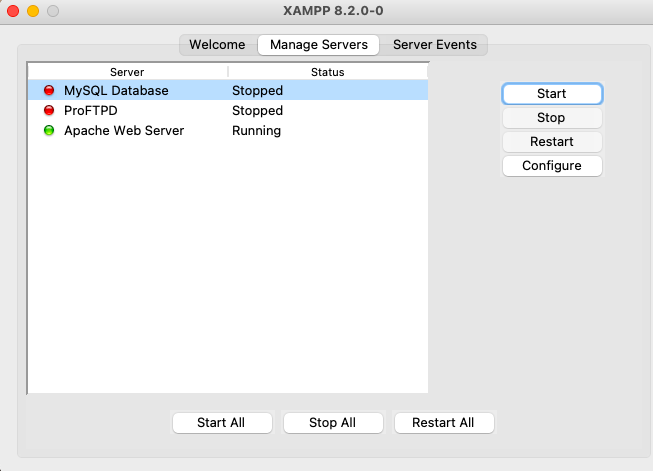
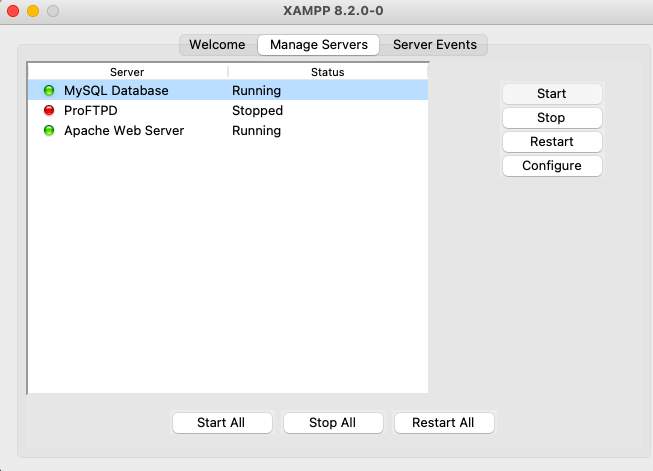
Suppose you have turned on mysql on your system using xampp manager. Now you’ve created a database in your docker container which is running on port 3306. You want to map your docker container database(using same port) to your system port no. 3306 which is already occupied by your xampp mysql. In this case you’ll get the following error.
start mysql
When port 3306 occupied by MySQL process on system
Error response from daemon: Ports are not available: exposing port TCP 0.0.0.0:3306 -> 0.0.0.0.0: listen tcp 0.0.0.0:3306: bind: address aready in use

So to free any occupied port from your system, first check the occupied process by that port on system and get the process id(PID).

Use the following command to see which process is using the conflicting port (replace PORT with the actual port number):

#sudo lsof -i :PORT
sudo lsof -i :3306

This will display a list of processes using port 3306.

process running on port

Freeing the Port:

Locate the process ID (PID) from the list. Then, use the following command to terminate the process (replace PID with the actual process ID):

#sudo kill PID
sudo kill 3217

This will free up the port, allowing your Docker container to use it.
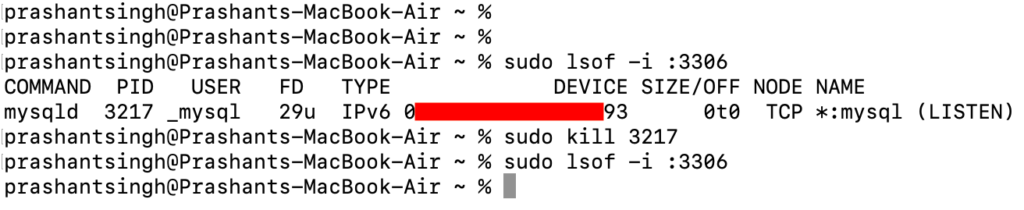
kill process
Stop MySQL
Port 3306 is now free and not occupied by any process on the system


Executable file not found in $PATH


Issue: error getting credentials – err: exec: “docker-credential-desktop”: executable file not found in $PATH, out: “
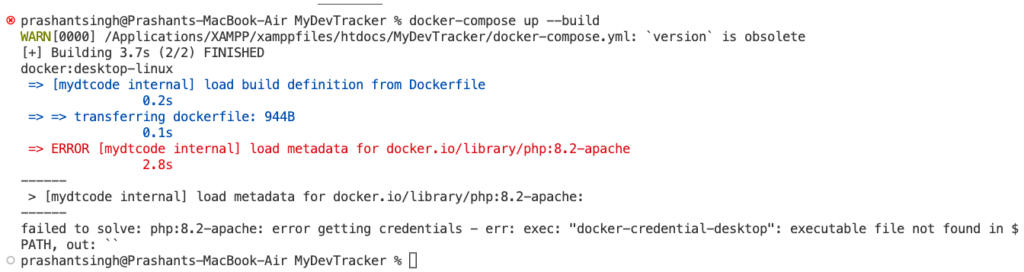
docker executable file not found

In this case you have to edit docker’s config.json

execute nano ~/.docker/config.json on your terminal and edit config.json as suggested below

you have to change “credsStore” key to “credStore”

# Before
{
        "auths": {},
        "credsStore": "desktop",
        "currentContext": "desktop-linux"
}

#After
{
        "auths": {},
        "credStore": "desktop",
        "currentContext": "desktop-linux"
}

Press control + X then Y then enter

docker-compose up --build


Docker is not running


Issue: on executing ./vendor/bin/sail up in laravel, it is throwing error “Docker is not running” whereas docker is running on desktop as well as in terminal
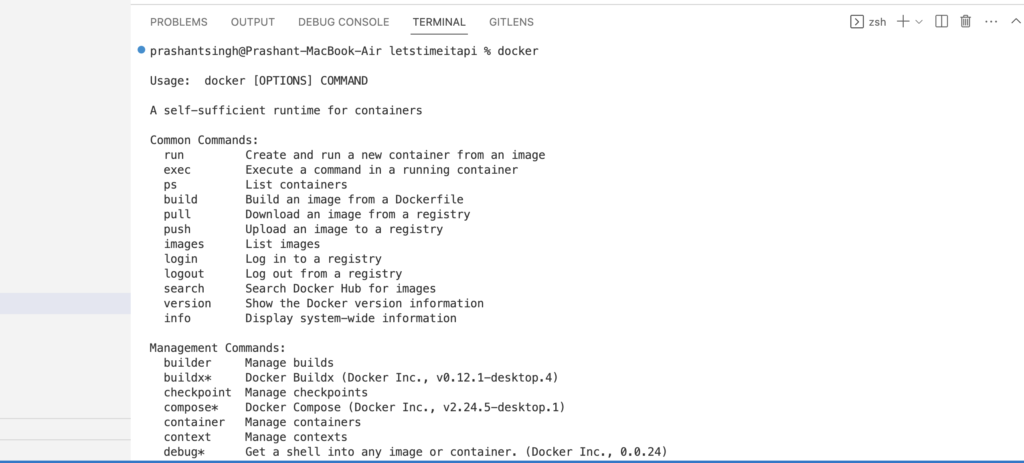
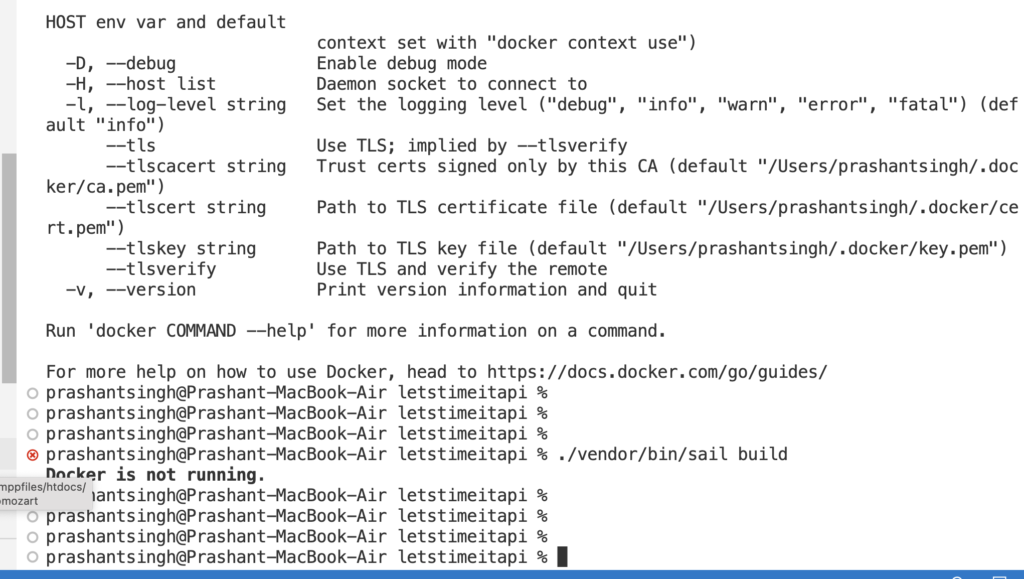
docker running on terminal
Docker successfully running on system
docker not running message
Docker is not running error message when working with laravel sail

Use SAIL_SKIP_CHECKS=true ./vendor/bin/sail build command to create docker build via sail

solution docker running successfully
Docker working with sail


FAQs


I’m on Mac and when I try to run docker commands, I get ‘zsh: command not found: docker mac’. How do I fix this?

This error indicates that your system can’t locate the docker command. The solution is to ensure Docker is installed and added to your PATH environment variable. Refer to the official Docker documentation or the above section for Mac installation instructions and PATH configuration steps.

I’m facing an error ‘docker-credential-desktop’: executable file not found in $PATH’. How can I resolve this?

This error suggests that your system cannot find the ‘docker-credential-desktop’ executable. The solution involves checking your PATH environment variable and ensuring it includes the directory where docker-credential-desktop is installed. You can find specific instructions on adding directories to your PATH in the official Docker documentation or this section.

How can I install Docker Compose?

The blog post recommends checking if Docker Compose is already installed. If not, it suggests steps to install on mac

I’m getting a ‘zsh: permission denied’ error when trying to run Docker commands. What should I do?

This error indicates you might not have the necessary permissions to run Docker commands. There are two possible solutions:
Run the command with sudo: Prefix your Docker command with sudo. However, be cautious using sudo as it grants elevated privileges. Only use it if absolutely necessary.
Switch to a user with Docker permissions: Some systems might require using a user with permissions to manage Docker. Check your Docker documentation for specific instructions on configuring user permissions.

I can’t find the ‘docker’ or ‘docker-compose’ commands even though I’m sure they are installed. What’s wrong?

Even after installation, your system might not immediately recognize the commands. This can happen if the installation directories are not included in your PATH environment variable. The PATH environment variable tells your system where to look for executable files.
Check your PATH: You can check your current PATH by running echo $PATH in your terminal.
Modify your PATH: The blog post likely references instructions on adding directories to your PATH. Follow those steps to ensure the Docker installation directories are included.


Closing Note


Now you possess the knowledge to tackle these common Docker setup hurdles! If you encounter any other issues, feel free to contact me or consult the official Docker documentation for further assistance.

Latest Trending JavaScript Interview Questions 2024

Overview

This is the final episode of JavaScript Interview Questions 2024 series. In this post, I’ll explore some more advanced Javascript Interview Questions. Here are previous episodes of this series Javascript Interview Questions For Frontend Developers 2024 – Part 1 and Javascript Interview Questions 2024 – Part 2, Ace Your Next Interview: Top JavaScript Interview Questions (2024 Update) please check them out first. This series contains some of the latest, trending, and most important questions related to the basics and advanced concepts of javascript, which may help you to understand the core concept of javascript and you’ll be able to crack your next technical interview round.


Q1: What is the DOM?


Imagine a play on stage. The actors, props, and background scenery all work together to create the performance. The DOM (Document Object Model) in JavaScript is similar. It’s a way for JavaScript to interact with and manipulate the structure and content of a web page. Here’s how it works:

  • The Blueprint (HTML): Think of the play’s script as the blueprint. Just like a play has a script that defines the characters, dialogue, and setting, a web page has HTML that defines its structure (headings, paragraphs, images, etc.).
  • The Actors and Props (HTML Elements): The actors and props on stage are like the HTML elements that make up your web page. These elements could be headings, paragraphs, buttons, images, and more.
  • The Stage Director (JavaScript): This is where JavaScript comes in! The DOM allows JavaScript to act like the stage director. It can manipulate the HTML elements (actors and props) to change the content, style, and behavior of your web page.

Example

<h1>Welcome!</h1>  <button>Click me!</button>  <script>
  // Get a reference to the button element using its ID
  const button = document.getElementById("myButton");

  // Add a click event listener to the button
  button.addEventListener("click", function() {
    alert("You clicked the button!");
  });
</script>

In this example, JavaScript uses the DOM to:

  1. Find the button element with the ID “myButton”.
  2. Add a click event listener to the button.
  3. When the button is clicked, it displays an alert message.

Benefits of Using the DOM:

  • Dynamic Web Pages: The DOM lets you create interactive and dynamic web pages that can respond to user actions and update content.
  • Content Manipulation: You can add, remove, and modify the content of your web page using JavaScript and the DOM.
  • Style Changes: You can change the style (color, font size, etc.) of HTML elements using JavaScript and the DOM.

Remember, the DOM is a fundamental concept for making web pages interactive and dynamic using JavaScript. It’s like the stage director, controlling the actors and props on the web page stage!


Q2: How do you select elements with Vanilla JavaScript?


Vanilla JavaScript, the core language without external libraries, offers powerful tools to select elements on your web page. Here are the main methods you can use:

  1. getElementById:
    • Think of this as having a unique ID tag for each element on your stage (web page).
    • getElementById is like a spotlight that finds the element with a specific ID you provide. It returns a single element.
<h1 id="main-heading">This is the main heading</h1>

const mainHeading = document.getElementById("main-heading");
console.log(mainHeading); // Outputs the h1 element

2. getElementsByTagName:

  • Imagine you want to find all the actors (elements) of a specific type on stage.
  • getElementsByTagName acts like a net that catches all the elements with a matching HTML tag name (like “h1”, “p”, “button”). It returns a collection of elements (NodeList) you can loop through.
<p>This is a paragraph.</p>
<p>This is another paragraph.</p>

const paragraphs = document.getElementsByTagName("p");
console.log(paragraphs); // Outputs a NodeList of all paragraphs

3. querySelector:

  • This is like having a powerful searchlight that can find elements based on various criteria (ID, class, tag name, etc.).
  • querySelector uses CSS selectors (similar to what you use in CSS) to target specific elements. It returns the first matching element.
<div class="special-box">This is a special box</div>

const specialBox = document.querySelector(".special-box");
console.log(specialBox); // Outputs the div element with class "special-box"

4. querySelectorAll:

  • Similar to querySelector, but it returns a NodeList containing all matching elements, not just the first one.
  • This is like casting a wide net to find all elements that match your selector.
<button class="action-button">Action 1</button>
<button class="action-button">Action 2</button>

const actionButtons = document.querySelectorAll(".action-button");
console.log(actionButtons); // Outputs a NodeList of all buttons with class "action-button"

Remember:

  • Choose the method that best suits your needs. getElementById is fast for unique IDs, while getElementsByTagName and querySelectorAll are better for finding multiple elements.
  • querySelector and querySelectorAll offer more flexibility with CSS selectors.

By mastering these selection methods, you can control the elements on your web page and create dynamic experiences using Vanilla JavaScript!


Q3: Explain event delegation in JavaScript.


Ever felt overwhelmed by adding event listeners to a bunch of similar elements in JavaScript? Event delegation is a powerful technique that helps you handle events more efficiently.

Imagine you have a crowded theater with many rows of seats. Instead of assigning a separate usher (event listener) to each seat, event delegation allows you to have a single usher at the entrance (parent element) who checks tickets (event target) and directs attendees (handles events) to their assigned seats (child elements).

Here’s how event delegation works:

  1. Attaching the Listener: You attach a single event listener to a parent element that contains all the child elements you’re interested in. This is like having the usher stand at the theater entrance.
  2. Event Bubbling: When an event (like a click) occurs on a child element, it bubbles up the DOM tree. It’s like the attendee going through the entrance first.
  3. Checking the Target: Inside the event listener function, you use the event.target property to identify the specific element that triggered the event. This is like the usher checking the attendee’s ticket.
  4. Handling the Event: Based on the event.target, you can perform the desired action for that specific element. This is like the usher directing the attendee to their seat.

Example

<ul id="button-list">
  <li><button>Button 1</button></li>
  <li><button>Button 2</button></li>
  <li><button>Button 3</button></li>
</ul>

<script>
const buttonList = document.getElementById("button-list");

buttonList.addEventListener("click", function(event) {
  if (event.target.tagName === "BUTTON") {
    console.log("You clicked button:", event.target.textContent);
  }
});
</script>

In this example, we have a single event listener on the buttonList (parent element). When a button is clicked (child element), the event bubbles up, and the event listener checks the event.target to see if it’s a button. If so, it logs the clicked button’s text content.

Benefits of Event Delegation:

  • Improved Performance: Reduces the number of event listeners needed, making your code more performant.
  • Dynamic Content: Works well with dynamically added elements, as the event listener is on the parent, which already exists.
  • Cleaner Code: Less code duplication compared to adding individual event listeners to each child element.

Remember:

Event delegation is a valuable technique for handling events efficiently in JavaScript, especially when dealing with many similar elements or dynamic content. It helps you write cleaner, more performant code.


Q4: What is the purpose of the addEventListener method?


In JavaScript, the addEventListener method is a fundamental tool for creating interactive web pages. It allows you to attach event listeners to elements in the Document Object Model (DOM), enabling your web page to respond to user actions and other events.

Here’s a breakdown of its purpose:

  • Event Listeners: These are essentially functions that wait for a specific event (like a click, mouse hover, or key press) to occur on a particular element.
  • Attaching Listeners: The addEventListener method acts like glue, attaching these event listener functions to DOM elements. You specify the element you want to listen to, the event you’re interested in (like “click”), and the function that should be executed when that event happens.

Example

<button id="myButton">Click me!</button>

<script>
const button = document.getElementById("myButton");

function handleClick() {
  alert("You clicked the button!");
}

button.addEventListener("click", handleClick);
</script>

In this example:

  1. We first get a reference to the button element using its ID.
  2. Then, we define a function handleClick that displays an alert message.
  3. Finally, we use addEventListener on the button element. We specify:
    • The event to listen for: "click" (when the button is clicked).
    • The function to call when the event happens: handleClick.

Now, whenever the user clicks the button, the handleClick function is triggered, displaying the alert message.

Benefits Of Using addEventListener:

  • Interactivity: It enables you to create dynamic and interactive web pages that respond to user actions and other browser events.
  • Event Handling: It provides a structured way to handle different events happening on your web page.
  • Code Reusability: You can define event listener functions separately and reuse them for multiple elements or events.

By effectively using addEventListener, you can bring your web pages to life and create a more engaging user experience.


Q5: How do you create and remove elements in the DOM?


Let’s break down creating and removing elements in the DOM (Document Object Model) using JavaScript in a clear and beginner-friendly way:

Creating Elements

Imagine you’re a web page architect, and the DOM is your building site. Here’s how you can create new elements:

  1. document.createElement(): This is like having a blueprint library. You use this method to specify the type of element you want to create (e.g., “p” for paragraph, “div” for a division, etc.). It returns a new, empty element.
  2. Setting Properties (Optional): You can customize the new element using properties. For example, you can set the element’s text content, ID, or class name.
  3. Appending to the DOM: Once you have your element, you need to place it on your web page. You can use methods like:
    • appendChild(element): This adds the element as the last child of an existing element. Think of it as attaching the new element to the end of a section in your building site.
    • insertBefore(element, referenceElement): This inserts the element before another element, specified by the referenceElement. It’s like carefully placing the new element between existing ones on your site.

Example

const newParagraph = document.createElement("p");
newParagraph.textContent = "This is a new paragraph!";

const existingElement = document.getElementById("main-content");
existingElement.appendChild(newParagraph);

Removing Elements

Now, imagine you need to renovate your web page and remove some elements. Here’s how you can do that:

  1. parentNode: This property on an element points to its parent element in the DOM hierarchy. Think of it as following the construction chain to find the element’s parent section.
  2. removeChild(element): This method removes a specified element from its parent. It’s like demolishing the element from your web page building site.
const elementToRemove = document.getElementById("old-element");
elementToRemove.parentNode.removeChild(elementToRemove);

Additional Considerations

  • You can also use the innerHTML property to set the entire HTML content of an element, but be cautious as it can overwrite existing content and event listeners.
  • The createElement and appendChild methods are commonly used together to create and add new elements to your web page.
  • Remember to choose the appropriate method (appendChild or insertBefore) based on where you want to place the new element.

By mastering these techniques, you can dynamically modify the structure and content of your web pages using JavaScript, making them more interactive and engaging for users!


Q6: Explain the concept of event propagation.


In JavaScript, event propagation refers to the mechanism that determines how events travel through the Document Object Model (DOM) when they occur on a web page element. It dictates the order in which elements have the chance to handle the event.

Imagine you have a nested set of boxes, representing the DOM structure. An event, like a click, originates from the innermost box (target element). Event propagation defines the path this click event follows as it bubbles up or trickles down the DOM hierarchy.

There are two main phases of event propagation:

  1. Capturing Phase (Less Common): (Trickles down) This phase is rarely used but allows you to intercept events before they reach the target element. Event listeners set with the useCapture parameter set to true are triggered during this phase.
  2. Bubbling Phase (Default): (Bubbles up) This is the more common phase. When an event occurs on an element, it first triggers any event listeners on that element (the target). Then, the event bubbles up through its ancestors (parent elements, grandparents, and so on) until it reaches the document object (the outermost element). Event listeners on these ancestor elements are triggered in the order they appear in the DOM tree.

Here’s a breakdown of the key points:

  • Target Element: The element where the event originates (the innermost box in our analogy).
  • Event Bubbling: The default behavior where events travel up the DOM tree, triggering listeners on ancestor elements.
  • Event Capturing: The less common phase where events can be listened to before reaching the target element, trickling down from the document object.

Why is Event Propagation Important?

Understanding event propagation is crucial for several reasons:

  • Handling Events Efficiently: You can leverage bubbling to avoid adding event listeners to every element. By placing a listener on a parent element, you can handle events for all its children.
  • Complex Interactions: Event propagation allows you to create intricate interactions between elements. For example, clicking a button inside a menu might also trigger an event on the menu itself.
  • Event Stopping: You can control propagation using methods like stopPropagation to prevent an event from bubbling up further after it’s been handled.

By mastering event propagation, you can write cleaner, more efficient, and interactive JavaScript code for your web applications.


Q7: How can you prevent the default behavior of an event?


In JavaScript, preventing the default behavior of an event gives you more control over how a web page reacts to user interactions. By default, certain events like clicks or form submissions might trigger built-in behaviors (like following a link or submitting a form). You can use JavaScript to stop these defaults and create custom actions instead.

Here’s how you can prevent the default behavior of an event:

  1. Event Object: When an event listener function is triggered, it receives an event object as an argument. This object contains information about the event, including methods to control its behavior.
  2. preventDefault() Method: This method, available on the event object, is the key to stopping the default behavior. Call event.preventDefault() inside your event listener function to prevent the browser’s default action for that event.

Example

<a href="#" id="myLink">Click me (default prevented)</a>

<script>
const myLink = document.getElementById("myLink");

myLink.addEventListener("click", function(event) {
  // Prevent the default behavior (following the link)
  event.preventDefault();

  // Your custom action here (e.g., display an alert)
  alert("You clicked the link, but we prevented the default behavior!");
});
</script>

In this example:

  • We have a link with an ID myLink.
  • The click event listener prevents the default behavior (event.preventDefault()) when the link is clicked.
  • Instead, a custom alert message is displayed.

Important Considerations

  • Preventing default behavior is useful for creating custom interactions and handling form submissions without reloading the page.
  • Use it judiciously, as some default behaviors might be expected by users (e.g., preventing a link from navigating away might be confusing).

Additional Methods

  • You might also encounter the returnValue property (older approach) for preventing defaults, but preventDefault is the more modern and recommended way.
  • Some events, like focus or blur, don’t have a default behavior to prevent.

By understanding how to prevent default event behavior, you can create more interactive and engaging web experiences using JavaScript.


Q8: What is the purpose of the data- attribute in HTML?


The data-* attribute in HTML is a versatile tool that allows you to store custom data directly on HTML elements without affecting the element’s functionality or appearance. It provides a way to associate private information with an element for use by scripts on the same page, or potentially by server-side code.

Here’s a breakdown of its key characteristics:

Structure

  • The data-* attribute always starts with data- followed by a hyphen (-).
  • The rest of the attribute name is typically a descriptive identifier related to the data being stored. You can use camelCase or kebab-case for the custom name (e.g., data-productIddata-user-preference).

Purpose

  • Stores private data that isn’t directly relevant to the element’s content or visual presentation. This can include things like:
    • Unique identifiers for elements (e.g., data-product-id="123")
    • User preferences (e.g., data-theme="dark")
    • Flags or states (e.g., data-is-active="true")
    • Information for client-side scripts (e.g., data for charts or maps)

Benefits

  • Semantic Neutrality: Doesn’t affect the element’s meaning or presentation in the browser. Screen readers and crawlers typically ignore data-* attributes.
  • Flexibility: You can store a wide variety of data types as strings using data-* attributes.
  • JavaScript Access: JavaScript can easily access and manipulate the data using the dataset property of the element.

Example

<img src="image.jpg" alt="Product Image" data-product-id="456">

In this example, the data-product-id attribute stores the product ID (456) associated with the image. A JavaScript function could later retrieve this ID using the dataset property.

const imageElement = document.querySelector("img");
const productId = imageElement.dataset.productId;  // Accessing data using dataset
console.log(productId); // Outputs: "456"

Things to Consider

  • While data-* attributes are convenient for private data, avoid using them for critical information that needs stronger data validation or persistence.
  • For more complex data structures, consider using alternative solutions like JSON or dedicated JavaScript libraries.

By effectively using data-* attributes, you can enhance the functionality of your web pages and create a more dynamic user experience without cluttering your HTML with presentational details.


Q9: Describe the difference between innerHTML and textContent.


Both innerHTML and textContent are properties in JavaScript used to manipulate the content of HTML elements, but they deal with that content in fundamentally different ways. Here’s a breakdown to clarify their distinctions:

innerHTML

  • Represents: The entire HTML code contained within an element, including all child elements and their text content, tags, and attributes.
  • Behavior:
    • Getting: Returns a string of the complete HTML content within the element.
    • Setting: Replaces the entire inner content of the element with the provided HTML string. This can be dangerous if not handled carefully, as it can overwrite existing event listeners and lead to XSS (Cross-Site Scripting) vulnerabilities if you’re setting user-generated content.

textContent

  • Represents: The combined text content of an element and all its child elements, but it excludes any HTML tags or attributes.
  • Behavior:
    • Getting: Returns a string of the combined text content, including whitespace (spaces, newlines) by default.
    • Setting: Replaces the entire text content of the element and its children with the provided string. This is generally safer for setting content as it doesn’t allow for unintended script execution.

Key Differences

FeatureinnerHTMLtextContent
Content TypeEntire HTML code within the elementCombined text content, excluding tags and attributes
Tags and AttributesIncludedExcluded
Whitespace (default)PreservedPreserved
Setting SafetyCan be risky (potential XSS vulnerabilities)Generally safer

When to Use Which

  • Use innerHTML cautiously when you specifically need to modify the element’s complete HTML structure, including tags and attributes. Be mindful of XSS risks when setting content from external sources.
  • Use textContent in most cases for setting or retrieving the text content of an element. It’s a safer option for updating the content without introducing unintended elements or scripting issues.

Example

<div id="myElement">
  This is some <b>bold</b> text with a <span id="special">special span</span>.
</div>

  • Using innerHTML on myElement:
    • Getting: Would return the entire HTML content as a string, including the <b> tag and <span> element.
    • Setting: If you set myElement.innerHTML = "New Content", it would replace the entire content of the element with just the text “New Content”, removing the bold formatting and the span element.
  • Using textContent on myElement:
    • Getting: Would return the combined text content, which is “This is some bold text with a special span.” (including spaces).
    • Setting: If you set myElement.textContent = "Updated Text", it would replace the entire text content within the element, but the bold formatting and span element would still be there.

Remember

Choose the property that best suits your needs based on whether you want to work with the complete HTML structure (including tags) or just the text content. Be cautious when using innerHTML for setting content, especially from untrusted sources.


Q10: How do you handle asynchronous code in JavaScript?


Ah, asynchronous code! This is a fundamental concept in JavaScript for building dynamic and responsive web applications. Here’s a breakdown to guide you through handling asynchronous operations effectively:

What is Asynchronous Code?

JavaScript, by default, executes code synchronously, meaning one line after the other. But web applications often involve waiting for external factors like:

  • Fetching data from a server (using APIs or AJAX)
  • User interactions (like button clicks or form submissions)
  • Timers (like setTimeout or setInterval)
  • File operations (in Node.js environments)

These are asynchronous operations because JavaScript can’t continue execution and wait for them to finish before moving on.

How to Handle Asynchronous Code

There are two main approaches to dealing with asynchronous code in JavaScript:

Callbacks:

  • The traditional approach. You pass a function (the callback) as an argument to the asynchronous function.
  • When the asynchronous operation finishes, the callback function is executed with the result (or error) as an argument.
function fetchData(callback) {
    // Simulate asynchronous operation (e.g., API call)
    setTimeout(() => {
        const data = { name: "John", age: 30 };
        callback(data); // Call the callback function with the data
    }, 1000);
}

fetchData(function(data) {
    console.log("Data received:", data);
});

Promises:

  • A more modern approach that provides better readability and error handling.
  • An asynchronous operation returns a Promise object, which represents the eventual completion (or failure) of the operation.
  • You can use the then and catch methods on the Promise to handle the successful result or any errors that might occur.
function fetchData() {
    return new Promise((resolve, reject) => {
        // Simulate asynchronous operation (e.g., API call)
        setTimeout(() => {
            const data = { name: "John", age: 30 };
            resolve(data); // Resolve the promise with the data
        }, 1000);
    });
}

fetchData()
    .then(data => console.log("Data received:", data))
    .catch(error => console.error("Error:", error));

Async/Await (ES6+):

  • Builds on top of Promises and provides a cleaner syntax for writing asynchronous code.
  • You can use the async keyword before a function to declare it as asynchronous.
  • Inside an async function, you can use the await keyword before a Promise to pause execution until the Promise resolves (or rejects).
async function fetchData() {
    try {
        const response = await fetch('https://api.example.com/data');
        const data = await response.json();
        console.log("Data received:", data);
    } catch (error) {
        console.error("Error:", error);
    }
}

fetchData();

Choosing the Right Approach

  • Callbacks are a good starting point, but they can lead to nested callback hell for complex asynchronous operations.
  • Promises offer better code organization and error handling.
  • Async/await provides the most concise and readable way to write asynchronous code (available in ES6 and later environments).

Additional Tips

  • Always handle errors in your asynchronous code using try...catch blocks or promise rejections.
  • Consider using libraries like Axios for easier HTTP requests and handling asynchronous operations.

By effectively handling asynchronous code, you can build responsive and user-friendly web applications that don’t lock up the browser while waiting for external data or user interactions.


Ace Your Next Interview: Top JavaScript Interview Questions (2024 Update)

Overview

In this post, I’ll explore some advanced Javascript Interview Questions which is a part of the Javascript Interview Questions 2024 series. If you didn’t go through the previous parts i.e. Javascript Interview Questions For Frontend Developers 2024 – Part 1 and Javascript Interview Questions 2024 – Part 2 please check them out first. This series contains some of the latest, trending, and most important questions related to the basics and advanced concepts of javascript, which may help you to understand the core concept of javascript and you’ll be able to crack your next technical interview round.


Q1: What is prototypal inheritance?


Imagine you’re building a bunch of cool cars. You wouldn’t build each car from scratch, right? Instead, you’d probably start with a blueprint for a basic car, then customize it for different models.

That’s kind of what prototypal inheritance does in JavaScript. Here’s how it works:

  • The Blueprint (Prototype): Every object in JavaScript has a hidden blueprint called a prototype. This blueprint holds properties and methods (like functions) that the object can inherit.
  • Inheriting the Cool Stuff: When you create a new object, it inherits properties and methods from its prototype. So, it gets all the cool features from the blueprint without you having to write them again!
  • Looking Up the Family Tree: If the new object tries to use a property or method it doesn’t have, JavaScript searches the prototype’s “family tree” to find it. It keeps looking up the chain until it finds the property or reaches the end of the line.

Think of it like this:

// Our Blueprint (Car Prototype)
const car = {
  wheels: 4,
  makeNoise: function() {
    console.log("Beep Beep!");
  }
};

// Creating a New Car (SportsCar inherits from car)
const sportsCar = Object.create(car); 
sportsCar.color = "Red";

console.log(sportsCar.wheels); // Inherited from blueprint (4)
sportsCar.makeNoise(); // Inherited function (Beep Beep!)

Here, sportsCar inherits the wheels property and makeNoise function from the car blueprint.

This way, you can create all sorts of new objects (like different car models) with the same basic features (wheels, making noise) and add their own unique properties (color). Pretty neat, right?

Remember, prototypal inheritance is a powerful tool in JavaScript for code reusability and building object relationships.


Q2: How do you create an object in JavaScript?


Imagine you have a toolbox filled with different tools. In JavaScript, an object is like a special box where you can store your own things, just like the tools in your toolbox. These things can be labels (like “name”) and values (like “Alice”).

Here’s how to create your own object in JavaScript, just like packing your toolbox:

  1. Curly Braces ({ }): These are like the walls of your box. Put everything you want inside these curly braces.
  2. Labels and Values (name:value): Separate each item in your box with a comma (,). Each item has two parts: a label (like a name tag) and a value (the actual tool). They’re separated by a colon (:).

For example, let’s create an object to describe your favorite pet:

const myPet = {
  name: "Luna",  // Label (name) and value ("Luna")
  species: "Cat",  // Another label (species) and value ("Cat")
  age: 2         // One more label (age) and value (2)
};

Here, myPet is your object, and it has three items inside:

  • name: "Luna" tells everyone your pet’s name is Luna.
  • species: "Cat" tells everyone your pet is a cat.
  • age: 2 tells everyone your pet is 2 years old.

That’s it! You’ve created your own object in JavaScript. Now you can use this object to store information about anything you like, from your favorite toy to your superhero costume!

Remember, objects are like customizable boxes to hold all sorts of cool stuff in your JavaScript programs.


Q3: What is the purpose of the prototype property in JavaScript?


Imagine you’re in a superhero academy, learning amazing skills. The prototype property in JavaScript is like the master trainer who holds all the secret knowledge (methods and properties) that superheroes can inherit.

Here’s how it works:

  • The Master Trainer (Prototype): Every function and object in JavaScript has a hidden prototype property. This property acts like a master trainer, containing all the cool superhero moves (methods) and characteristics (properties) that can be passed on.
  • Learning from the Best (Inheritance): When you create a new object using a constructor function (like creating a new superhero), that object inherits all the powers (methods and properties) from the constructor’s prototype. It’s like getting trained by the master!
  • Sharing the Knowledge (Code Reusability): This inheritance sayesinde (say “saanen-dee-yen”), which is Turkish for “thanks to this,” you don’t have to define the same superpowers (methods and properties) for every new object. It saves you time and keeps your code clean.

Here’s an example to show you how it works:

// Master Trainer (Animal Prototype)
function Animal(name) {
  this.name = name;
  this.makeNoise = function() {
    console.log("Generic animal noise!");
  }
}

// Creating a New Superhero (Dog inherits from Animal)
const dog = new Animal("Buddy");

console.log(dog.name); // Inherited property ("Buddy")
dog.makeNoise(); // Inherited method (Generic animal noise!)

In this example, the Animal function acts as the prototype, holding the name property and the makeNoise method. When we create a new dog object, it inherits these powers from the Animal prototype.

Remember, the prototype property is a key concept in JavaScript for code reusability and building object relationships. It’s like having a master trainer to share all the coolest superhero skills!


Q4: Explain The Difference Between Object.create And The Constructor Pattern.


Both Object.create and the constructor pattern are ways to create objects in JavaScript, but they work in slightly different ways. Here’s a kid-friendly explanation:

Imagine you’re building with Legos.

  • The Constructor Pattern: Think of the constructor pattern as a big Lego set with instructions. It comes with all the pieces (properties) and a guide (methods) to build a specific kind of object (like a spaceship). You follow the instructions to put the pieces together and create a new spaceship object.
  • Object.create: This is like having a box of random Legos. You can use Object.create to build a new object by taking Legos (properties) from another existing object (like a spaceship you already built). You can even add new Legos (your own properties) on top.

Here’s a table to show the key differences:

FeatureConstructor PatternObject.create
Inherits fromConstructor’s prototypeSpecified object
Code executionRuns constructor codeNo code execution
Exampleconst car = new Car()const newCar = Object.create(car)

Here’s when you might use each one:

  • Constructor Pattern: Use this when you want to create many objects of the same type with some pre-defined properties and behaviors (like building a bunch of spaceships).
  • Object.create: Use this when you need more flexibility and want to create an object that inherits from a specific existing object, but also want to add your own properties (like making a custom spaceship with extra wings).

Remember, both methods are useful tools for creating objects in JavaScript. Choose the one that best fits your needs for code reusability and customization!


Q5: How do you add a property to an object in JavaScript?


Imagine you have a toolbox, but it’s missing some important tools. In JavaScript, objects are like these toolboxes, and properties are the tools you put inside. You can add new properties to an object anytime to give it more functionality!

There are two main ways to add properties to an object:

  1. Dot Notation: Think of this as using a label maker to name your tools. You use a dot (.) followed by the property name (like “hammer”) and then an equal sign (=) to assign a value (the actual hammer) to the property.

Here’s an example:

const toolbox = {};  // Empty toolbox
toolbox.hammer = "";  // Adding a hammer property with dot notation
console.log(toolbox);  // Now toolbox has a hammer!

  1. Bracket Notation: This is like using sticky notes to label your tools. You use square brackets ([ ]) around the property name (like [“screwdriver”]) and then an equal sign (=) to assign a value (the actual screwdriver). This is useful when the property name has spaces or special characters.

Here’s an example:

const toolbox = {};  // Empty toolbox
toolbox["screw driver"] = "🪛";  // Adding a screwdriver property with bracket notation
console.log(toolbox);  // Now toolbox has a screwdriver!

Remember, you can add as many properties as you want to your objects using dot notation or bracket notation. This lets you customize your objects and make them more powerful!


Q6: What is the hasOwnProperty method used for?


Imagine you’re working on a big project with a bunch of tools, and some belong to you, while others are borrowed from your friends. The hasOwnProperty method in JavaScript acts like a detective, helping you figure out which properties truly belong to your object.

Here’s how it works:

  • Checking Ownership: JavaScript objects can inherit properties from other objects (like borrowing tools). hasOwnProperty checks if a specific property exists directly on the object itself, not just if it’s inherited from somewhere else.
  • True or False: This method returns a simple true or false answer. If the property truly belongs to the object (it’s not inherited), hasOwnProperty returns true. If the property is inherited or doesn’t exist at all, it returns false.
  • Why it Matters: Knowing if a property is truly owned by the object is important in various situations. For example, you might want to loop through only the object’s own properties, not inherited ones.

Here’s an example to show you how it works:

const car = {
  wheels: 4,
  makeNoise: function() {
    console.log("Beep Beep!");
  }
};

const sportsCar = Object.create(car); 
sportsCar.color = "Red";

console.log(sportsCar.hasOwnProperty("wheels")); // false (inherited)
console.log(sportsCar.hasOwnProperty("color")); // true (own property)

In this example, sportsCar inherits the wheels property from the car object. So, hasOwnProperty returns false for wheels. However, sportsCar has its own color property, so hasOwnProperty returns true for color.

Remember, the hasOwnProperty method is a handy tool for checking true ownership of properties in JavaScript objects. It helps you be a property ownership detective in your code!


Q7: How can you prevent modification of object properties in JavaScript?


Imagine you have a treasure chest filled with valuable stuff, but you want to make sure nobody can mess with it. In JavaScript, objects are like treasure chests, and properties are the valuables inside. There are three ways to act as a guard and prevent modifications:

  1. Object.preventExtensions: Think of this as putting a heavy lock on the chest. It prevents anyone from adding new properties altogether. Existing properties can still be changed, but no new ones can sneak in.
  2. Object.seal: This is like putting a special lock that allows looking at the treasure (accessing properties) but not taking anything out (changing property values) or adding anything new (adding properties).
  3. Object.freeze: This is the ultimate lock! It completely freezes the chest. Nobody can change the values of existing properties, add new ones, or even delete them. The treasure is safe and sound!

Here’s a table to show the key differences:

FeatureObject.preventExtensionsObject.sealObject.freeze
Add new propertiesNoNoNo
Change existing valuesYesYesNo
Delete propertiesYesNoNo
ExampleObject.preventExtensions(object)Object.seal(object)Object.freeze(object)

Remember:

  • Use Object.preventExtensions when you only want to restrict adding new properties.
  • Use Object.seal when you want to prevent adding new properties and deleting existing ones, but allow modifying values.
  • Use Object.freeze for complete protection – no modifications allowed!

These methods are helpful for situations where you want to ensure data integrity and prevent accidental changes to your objects.


Q8: Describe the use of the new keyword.


Imagine you have a special blueprint for building amazing robots. The new keyword in JavaScript acts like a magic tool that brings this blueprint to life, creating a brand new robot object based on your instructions.

Here’s how it works:

  1. The Blueprint (Constructor Function): In JavaScript, a constructor function is like your robot blueprint. It defines the properties (like height, weight) and methods (like walk, talk) that all your robots will have.
  2. Using the new Keyword: When you call a function with the new keyword in front of it, JavaScript knows you want to create a new object based on that function’s blueprint. It’s like using the magic tool to activate the blueprint!
  3. The New Robot Object: Behind the scenes, JavaScript does several things:
    • Creates a brand new, empty object.
    • Sets this object’s internal prototype to the constructor function’s prototype (think of it as inheriting traits).
    • Executes the code inside the constructor function, allowing you to define properties and methods specifically for this new robot object.
    • Finally, returns the newly created robot object for you to use!

Here’s an example to show you what we mean:

function Robot(name, height) {
  this.name = name;
  this.height = height;
  this.greet = function() {
    console.log("Beep boop! My name is " + this.name);
  };
}

const robot1 = new Robot("RX-78", 18.5);  // Using new keyword to create a robot object
console.log(robot1.name); // "RX-78" (property from constructor)
robot1.greet(); // "Beep boop! My name is RX-78" (method from constructor)

In this example, the Robot function is the blueprint. When we use new Robot("RX-78", 18.5), the new keyword creates a new robot object named robot1 with the specified name and height. It also inherits the greet method from the blueprint.

Remember, the new keyword is essential for creating objects based on constructor functions in JavaScript. It’s the magic tool that brings your object blueprints to life!


Q9: Explain the concept of Object Destructuring in JavaScript.


Imagine you have a toolbox filled with all sorts of tools, but you only need a hammer and screwdriver for your project. Object Destructuring in JavaScript is like a special technique to quickly grab the exact tools (properties) you need from a toolbox (object) without taking out everything.

Here’s how it works:

  • Matching Names: Think of labeling your tools clearly. In Object Destructuring, you create variables with names that match the property names you want to extract from the object. It’s like having labels ready for the tools you need.
  • Destructuring Assignment: This is the magic trick! You use curly braces ({ }) and assign the object properties to your variables directly. It’s like reaching into the toolbox and grabbing only the tools you labeled.

Here’s an example to show you what we mean:

const toolbox = {
  hammer: "",
  screwdriver: "🪛",
  wrench: "",
  nails: ""
};

// Traditional way (getting everything):
const allTools = toolbox; 

// Destructuring to get only hammer and screwdriver:
const { hammer, screwdriver } = toolbox;

console.log(hammer); // ""
console.log(screwdriver); // "🪛"

In this example, we use destructuring to directly assign the hammer and screwdriver properties to separate variables (hammer and screwdriver). We don’t need to grab everything from the toolbox (object) at once.

Benefits of Destructuring:

  • Cleaner Code: Destructuring makes your code more readable and avoids repetitive property access using dot notation.
  • Easier Assignment: You can directly assign properties to variables with matching names, saving time.
  • Default Values: You can also set default values for properties that might not exist in the object.

Remember, Object Destructuring is a powerful tool for unpacking objects and grabbing only the specific properties you need in JavaScript. It makes your code cleaner and more efficient!


Q10: What is the difference between null and undefined?


Both null and undefined are special values in JavaScript, but they have distinct meanings. Here’s a breakdown for beginners:

  • null: Think of null as an empty box. It’s a deliberate assignment that indicates a variable doesn’t hold any object or value. It’s like saying, “This box is intentionally empty.”
  • undefined: Imagine undefined as a vacant parking spot. It means a variable has been declared but hasn’t been assigned a value yet. It’s like saying, “This parking spot is reserved, but there’s no car here yet.”

Here’s a table to summarize the key differences:

Featurenullundefined
AssignmentDeliberate assignment (variable = null)Not assigned a value yet
TypeObjectundefined
Equality (== check)null == undefined evaluates to falsenull == undefined evaluates to false
Strict equality (=== check)null === undefined evaluates to falsenull === undefined evaluates to false

Here are some additional points to remember:

  • You can explicitly assign null to a variable: let emptyBox = null;
  • undefined is automatically assigned by JavaScript when you declare a variable without a value: let name; (here, name is undefined).
  • Although sometimes they might be treated similarly in certain situations, null and undefined have distinct meanings in JavaScript.

Tip: Using a linter or code formatter can help you avoid accidentally leaving variables undefined!


Summary

In this blog post, we explored a variety of advanced JavaScript interview questions that you might encounter during your next coding challenge. We discussed core JavaScript concepts such as prototypal inheritance, object creation, the constructor pattern, Object.create, and the hasOwnProperty method. By understanding these concepts, you’ll be well-equipped to tackle even the most challenging JavaScript interview questions.

To learn more about my web development skills and experience, visit my portfolio: Prashant Web Developer.